
You can show an interactive preview of your SwiftUI code that you edit in the source editor.
Xcode builds and runs the code as you make edits, and shows the results in the canvas. Xcode keeps the code you enter in the source editor and the user interface layout in the canvas in sync. If you add a user interface element to the canvas from the library, Xcode adds the corresponding code to the source file. If you select an element on the canvas, the corresponding code is selected in the source file. Xcode even adds code to the source file for the properties of elements that you change in the inspector.
To get started using SwiftUI, either choose SwiftUI as the user interface when you create an Xcode project, or add a file that uses SwiftUI to an existing project.
Choose File > New > File.
In the sheet that appears, select the platform, select SwiftUI View under User Interface, then click Next.
In the next sheet, enter the name of the structure, then click Create.
Optionally, choose a group from the pop-up menu and select an alternate target.
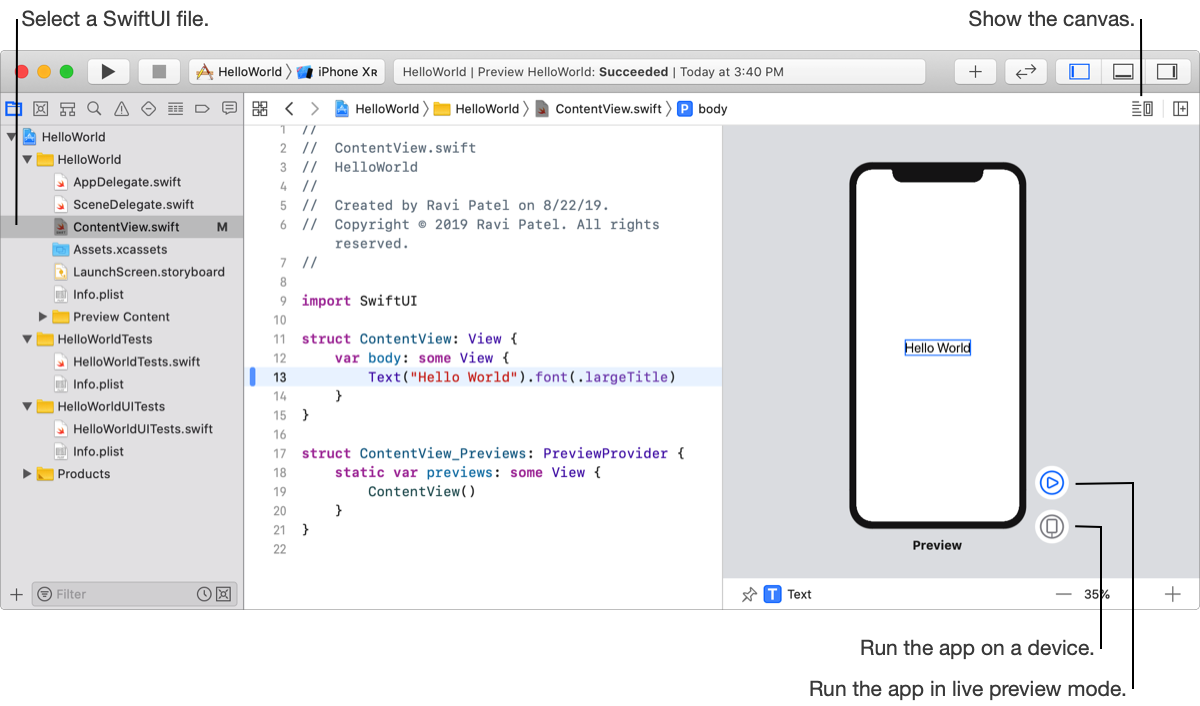
The canvas automatically appears to the right of the source editor.
In the Project navigator, select a file that uses SwiftUI, then choose Editor > Canvas.
Alternatively, choose Canvas from the Editor Options pop-up menu on the right of the jump bar.
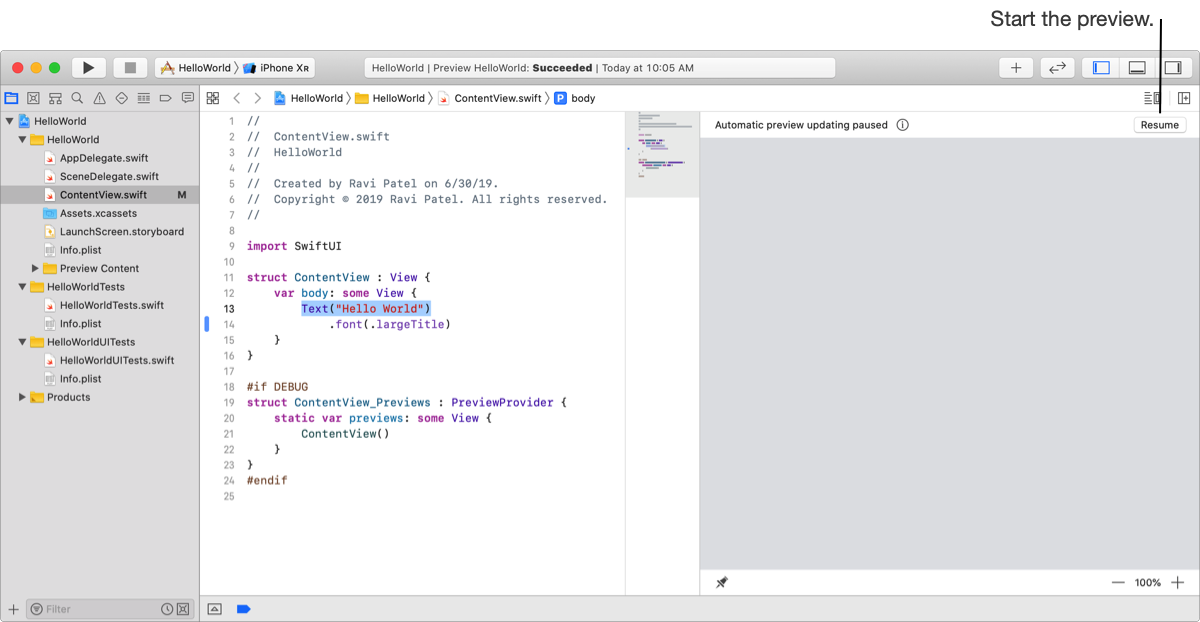
Click the Resume button in the upper-right corner of the canvas to start the preview.
You can switch from the preview to a live preview that runs the app on a simulated device directly in the canvas, or to a debug preview that includes a debug session. For macOS apps, the app runs on the desktop, not in the canvas. First show a preview, then use the controls in the lower-right corner of the canvas to switch between modes.
To run the app, click the Live Preview button in the canvas.
iOS, tvOS, and watchOS apps run on a simulated device in the canvas. macOS apps run on the desktop. If the window is hidden, click the Bring Forward button in the canvas.
To run the app with a debug session, Control-click the Live Preview button in the canvas, then choose Debug Preview from the pop-up menu.
When the app launches, a debug session opens in the debug area.
To stop the live preview or debug preview, click the Live Preview button in the canvas.
Xcode returns to the preview mode.
To run an iOS, tvOS, or watchOS app in the Simulator, go to Run an app on a simulated device (iOS, tvOS, watchOS).
For iOS, tvOS, or watchOS apps, you can launch your app on a device from the preview but you must code sign the app before it launches.
Before you begin, add your Apple ID account and assign the target to a team, then show the preview.
Connect the device to your Mac.
For watchOS apps that are dependent on an iOS app, connect an iPhone that is paired with an Apple Watch.
Click the Preview on Device button (below the Live Preview button) in the canvas.
If the app fails to run, read the error message above the canvas and click Diagnostics for more details.