
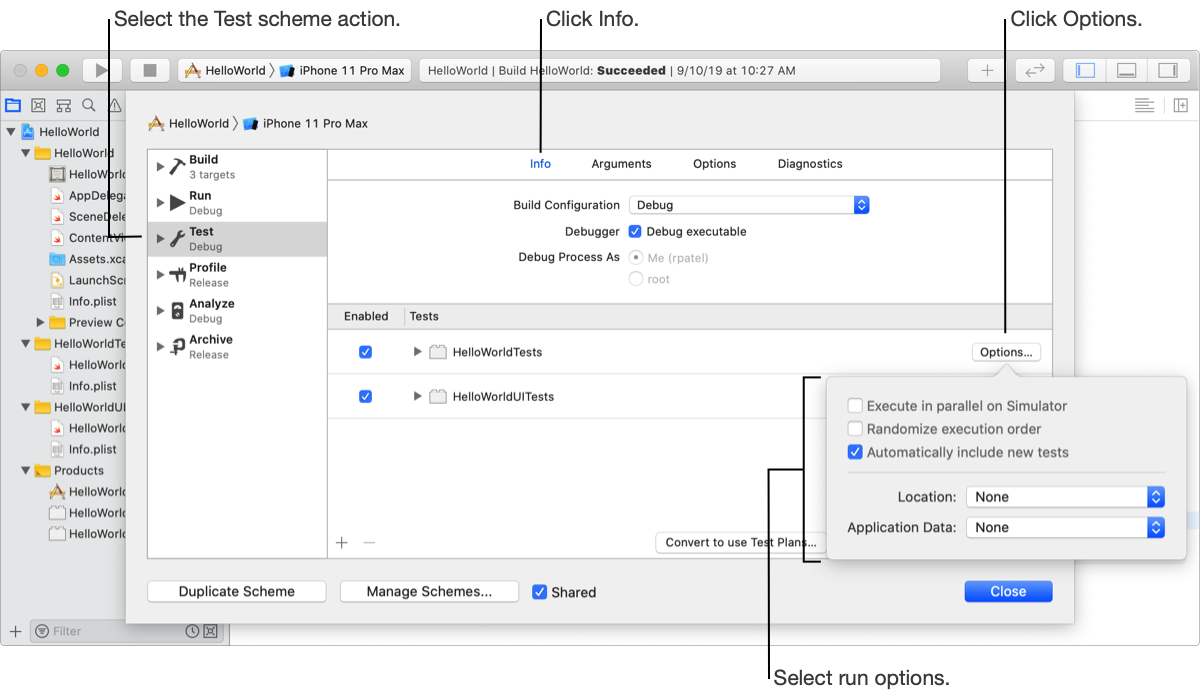
In the scheme editor, you can select additional run options for test targets. You can run tests in parallel, randomize the order of tests, and provide application data for a test run. You may also automatically include new tests in the scheme.
Important: If you convert your scheme to use test plans, edit the configuration of the test plan instead. In the scheme editor, you can hover the pointer over the test plan and click the arrow that appears to open it in the Test Plan editor.
You can distribute test classes across multiple runners or processes that execute tests. For unit tests, the runner is usually an instance of your app. For UI tests, the runner is a custom app that Xcode creates. When you run tests in parallel, Xcode distributes one or more test classes among as many runners as possible to complete the tests quickly. Then Xcode uses information from the previous run to optimize the next run.
For iOS and tvOS apps, this feature is only available when you run tests in Simulator.
In the scheme editor, select Test, then click Info on the right.
Under Tests and next to the test target, click Options.
In the popover that appears, select the “Execute in parallel on Simulator” checkbox.
For macOS apps, select the “Execute in parallel” checkbox.
Randomizes the run order of test classes and methods. Select this option to expose dependencies between tests. Otherwise, the run order of classes and methods is alphabetically.
In the scheme editor, select Test, then click Info on the right.
Under Tests and next to the test target, click Options.
In the sheet that appears, select the “Randomize execution order” checkbox.
You can specify a simulated location for the tests.
In the scheme editor, select Test, then click Info on the right.
Under Tests and next to the test target, click Options.
In the sheet that appears, choose a location from the Location pop-up menu.
You can specify that new tests be automatically added to the scheme. Otherwise, new tests are kept separate.
In the scheme editor, select Test, then click Info on the right.
Under Tests and next to the test target, click Options.
In the sheet that appears, select the “Automatically include new tests” checkbox.
If you download an app container from a device, you can use it as application data for a test run.
In the scheme editor, select Test, then click Info on the right.
Under Tests and next to the test target, click Options.
In the sheet that appears, select the “Automatically include new tests” checkbox.
From the Application Data pop-up menu, choose the Application Data Package that you added to your workspace.