
You edit, add, delete, or rename a test plan configuration using the Test Plan editor.
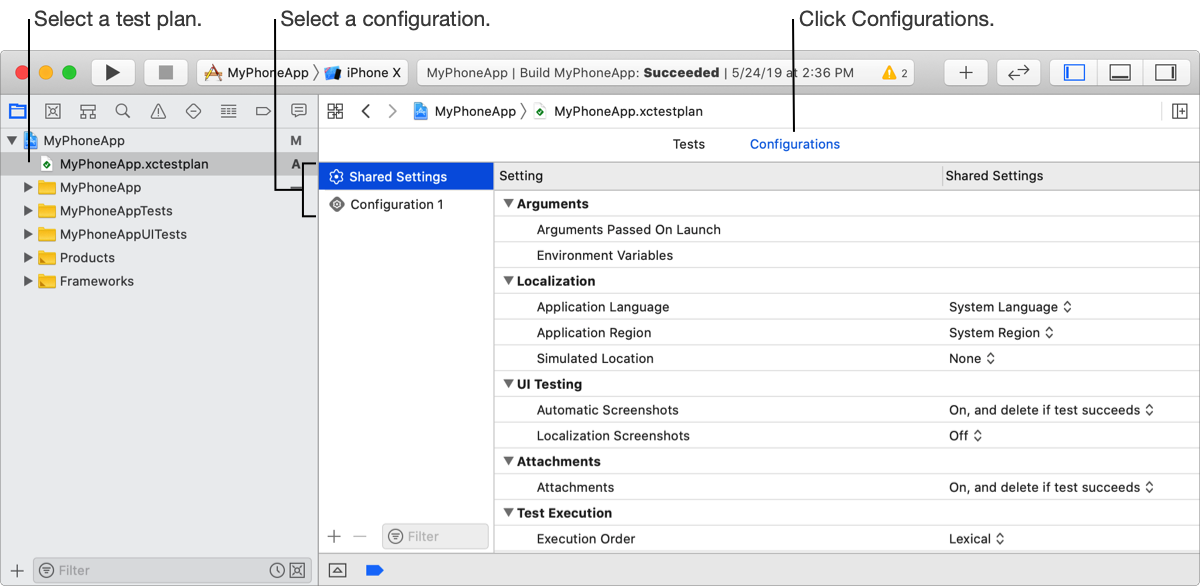
In the Project navigator ( ), select the test plan (a file with a
 .xctestplan file extension), then click Configurations.
On the left, select Shared Settings or a specific configuration below.
Shared Settings: Common settings for all configurations in a test plan. Inherited by all configurations unless they are overridden by a configuration.
On the right, edit the property keys for the selected configuration.
Alternatively, Command-click multiple configurations to compare or edit them at the same time.
In the Project navigator (), select the test plan, then click Configurations.
On the left, click the Add button (+) at the bottom.
Select the new configuration that appears to highlight the text, enter a name for the configuration, then click elsewhere to apply the change.
In the Project navigator (), select the test plan, then click Configurations.
On the left, select the configuration, then click the Delete button (–) at the bottom.
In the sheet that appears, click Delete.
In the Project navigator (), select the test plan, then click Configurations.
On the left, select the configuration, then select it again to highlight the text.
Enter a name for the configuration, then click elsewhere to apply the change.