
In the Devices and Simulators window, you can view the contents of an app’s container which may provide important information to help you diagnose problems or tune an app. You can examine files that the app created—or that it obtained from an external source—to find out whether the files contain valid information or indicate a problem. To test an app in a particular known state, you might replace a container.
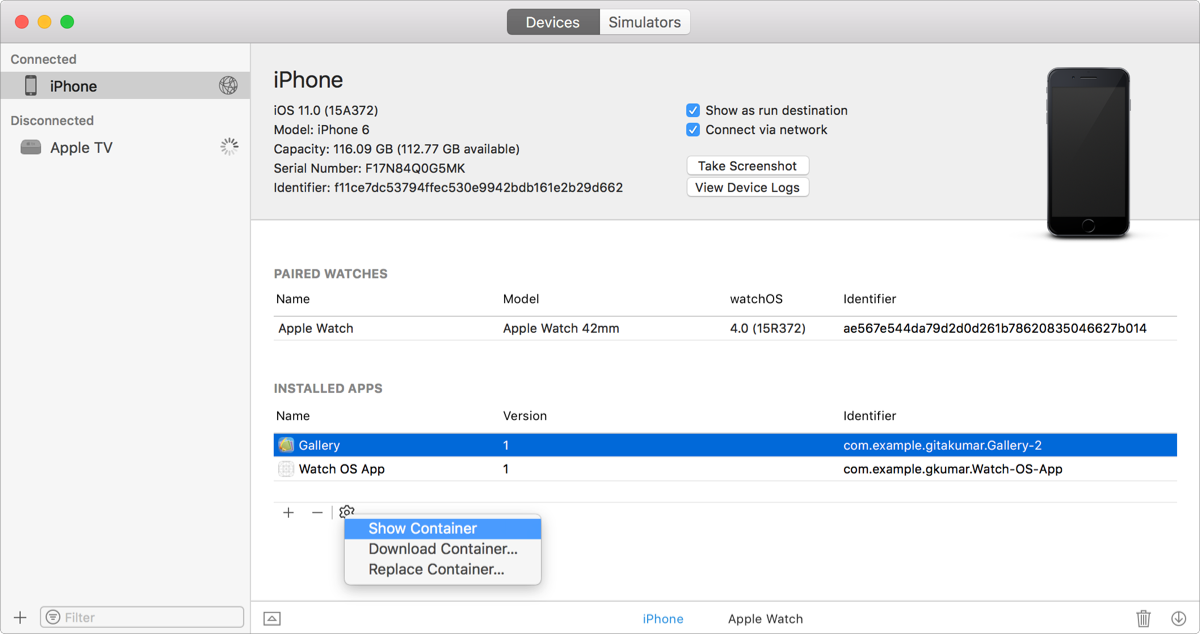
For iOS and tvOS apps, connect a device to your Mac. For watchOS apps, connect an iPhone paired with an Apple Watch.
Open the Devices and Simulators window (choose Window > Devices and Simulators), then click Devices.
In the left column, select the device.
Under Installed Apps, select the app from the list.
From the Action menu (the gear icon) below the table, choose a menu item.
Show Container: A sheet shows the file contents of the container.
Download Container: In the sheet that appears, enter a location and click Save. The saved file will have a .xcappdata filename extension.
Replace Container: In the sheet that appears, select a file with a .xcappdata filename extension, and click Open.
For example, to retest your app from a known state, download the app container, run your tests, restore the container, and run the tests again.