
You should thoroughly test your app in Xcode before submitting it to App Review or distributing it outside of the App Store.
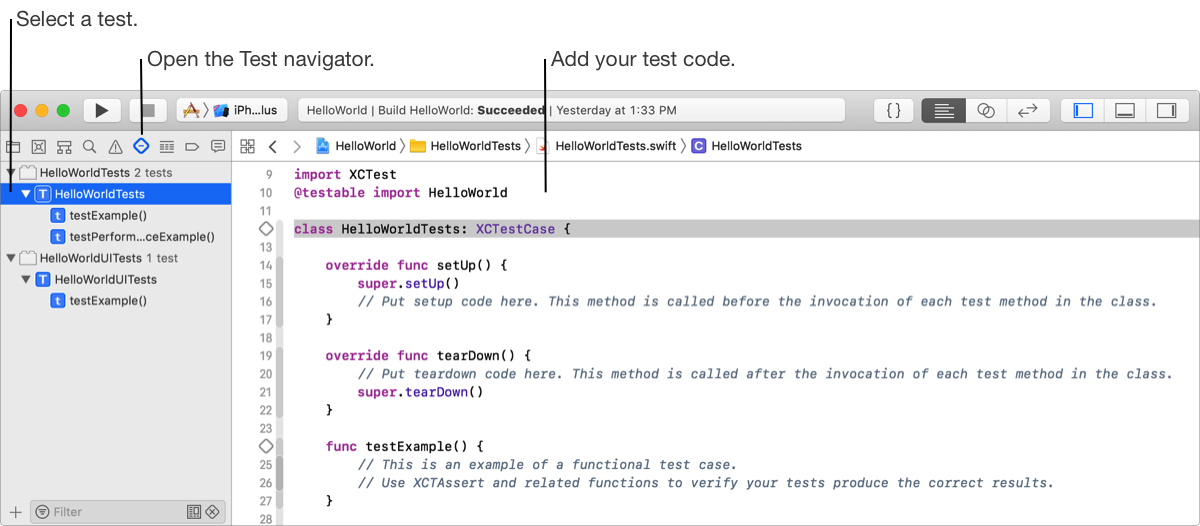
When you create your Xcode project from a template, select the Include Unit Tests and Include UI Tests checkboxes that appear under the Language pop-up menu on the first sheet. These options preconfigure your project with [Project Name]Tests and [Project Name]UITests targets. In the Test navigator ( ), you can view and edit the code for these tests, and add additional tests. To write code using the XCTest framework, go to the XCTest.
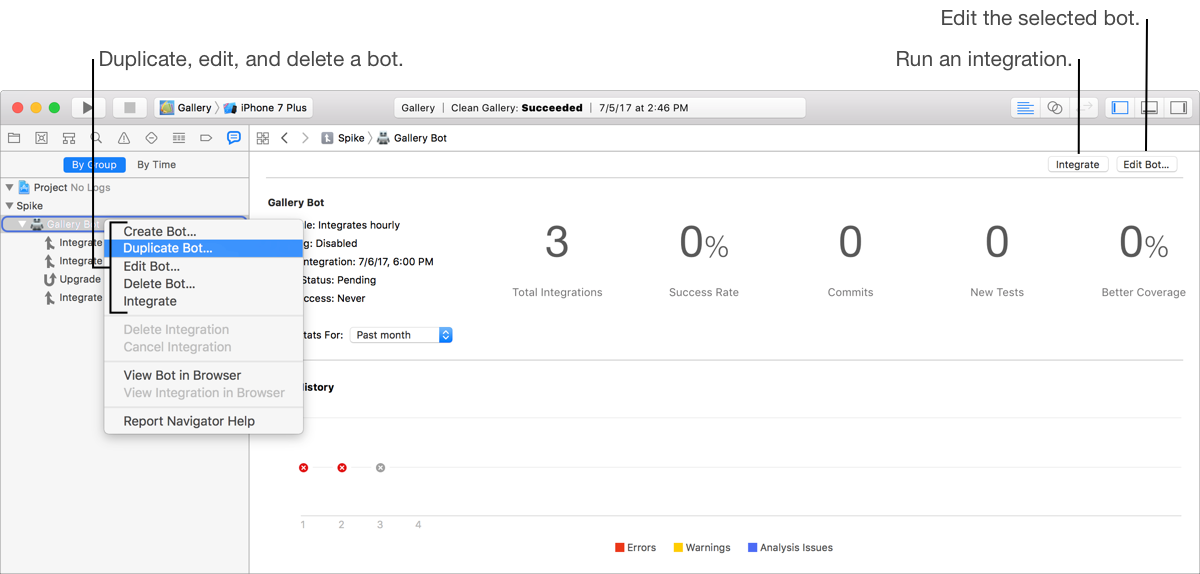
Similar to other targets in your project, you can run unit tests on simulated and connected devices. You can also set up continuous integration using Xcode Server and create a bot that automatically or periodically runs your unit tests. You can even configure a bot to run your targets on multiple server devices.
Edit the Debug scheme to run your app with sanitizers, memory management diagnostics, and logging options. Use Instruments to examine the behavior of your app, examine device-specific features, profile your running app, analyze performance, find memory problems, and optimize your app (go to Instruments Help). You can even create custom instruments that collect and display your own data (go to Instruments Developer Help).
In Simulator, you can test multiple apps together that share data or communicate with one another. Also, test your apps in parallel on multiple devices and simulators using the -destination option in the xcodebuild command.
Next Step: Distribute your app.