 in the navigator area of the main window.
Use the Test navigator to run unit tests and UI tests of your code, testing correctness and performance. To open the Test navigator, click the Test Navigator button in the navigator area of the main window.
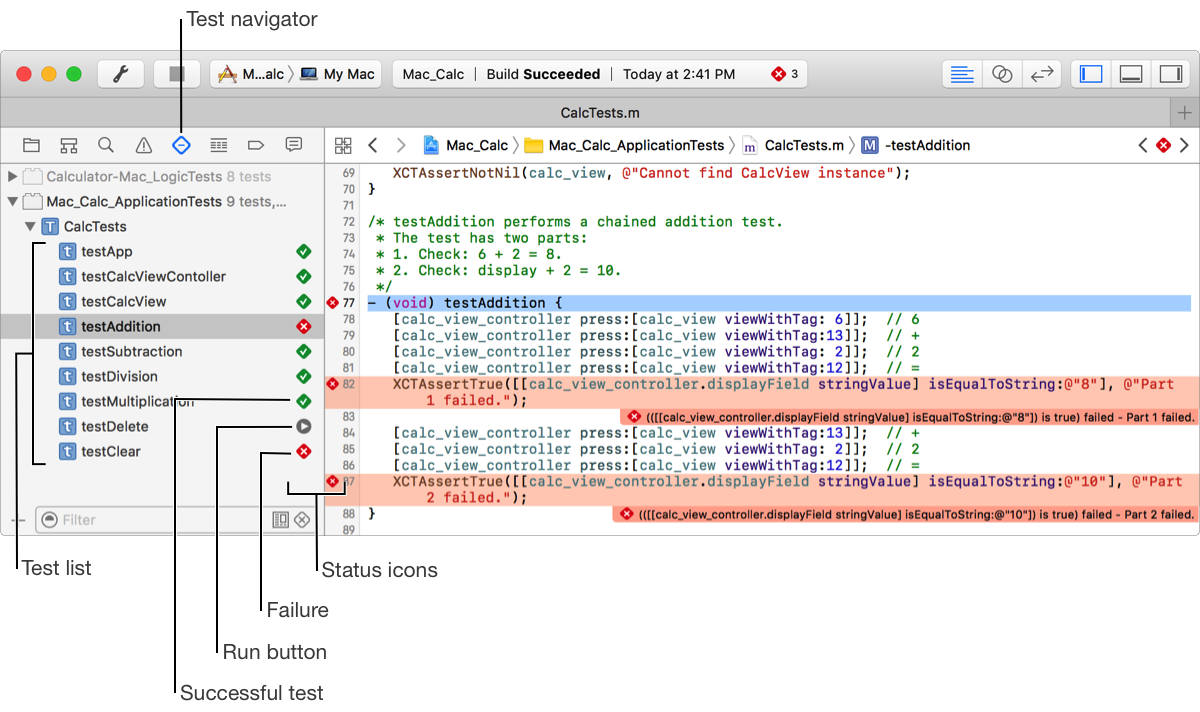
The Test navigator displays the test list, a hierarchical list of the test bundles, test classes, and tests implemented in your project.
Hovering the pointer over a test name in the Test navigator or source editor displays a run button. Click it to run that particular test. The run button for a test bundle or test class runs all the tests they contain. You can run all tests in your project by choosing Product > Test.
After running tests, status icons appear in the Test navigator. A green diamond with a checkmark indicates that a test has passed and a red diamond with an “X” indicates that a test has failed. When viewing the source code for your tests, these same icons appear in the gutter of the source editor.