
After you test your app on simulated and real devices in Xcode, it’s time to distribute your app to a wider audience, give the app a “real-world” test, and perhaps offer users a preview of an upcoming release. Later, you can release your app on the App Store or distribute it outside of the App Store.
You can add some capabilities and run your app on devices using your personal Apple ID. However, to access all app services—for example, Apple Pay, Game Center, and In-App Purchase—and use the production environments, you need to join the Apple Developer Program. You choose whether to join as an individual (a one person team) or an organization where you can invite other team members.
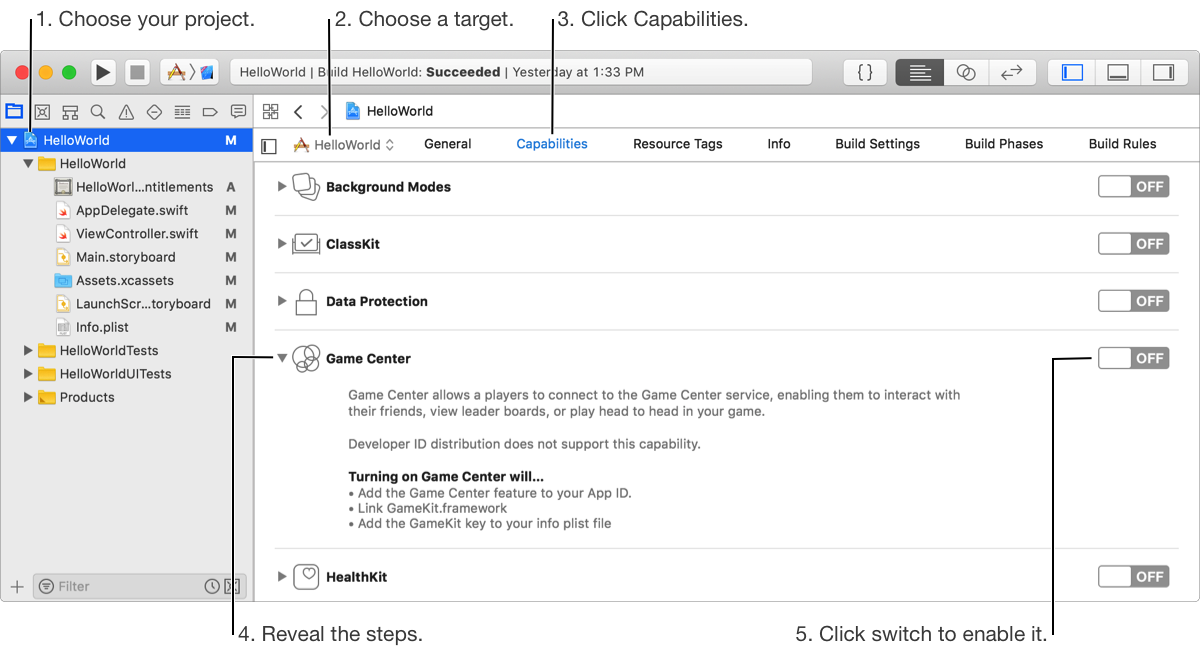
Regardless of the distribution method you choose, follow Human Interface Guidelines and prepare your app for distribution. For example, you should set the bundle ID, version number, and build string. If you want to release your app on the App Store, you must add an app icon and add an App Store icon.
Initially, you can distribute your app on registered devices (iOS, tvOS, watchOS) and choose a method that uses either the development or production environments for app services. However, the number of devices you can register are limited and shared by your development team.
For macOS apps, you can distribute to registered computers using the development environments, or distribute outside the Mac App Store using the production environments but with limited app services. Optionally, upload your macOS app to be notarized first so that users know your app comes from a trusted developer.
Alternatively, upload your app to App Store Connect and distribute your app using TestFlight (iOS, tvOS, watchOS). You can invite internal testers (your App Store Connect users) and external testers (users with email addresses). Inviting external testers requires that you submit your app to Beta App Review. In App Store Connect, you then manage the builds, check status of testers, and collect feedback (go to TestFlight beta testing overview).
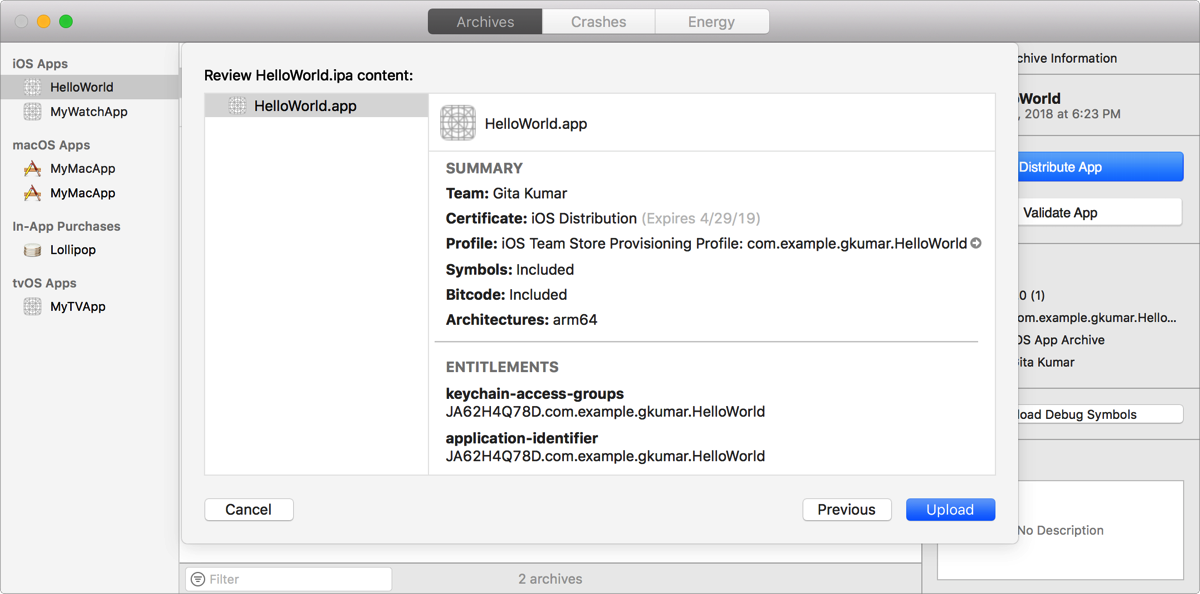
When you have your final build candidate, you can release it through the App Store by submitting it to App Review. In App Store Connect, you enter required metadata and manage your releases (go to Overview of publishing an app). If you release an app, you are responsible for maintaining the app on the App Store.
After you distribute your app using TestFlight or through the App Store, you can view crash and energy reports in the organizer and jump to the source code where an event occurred.