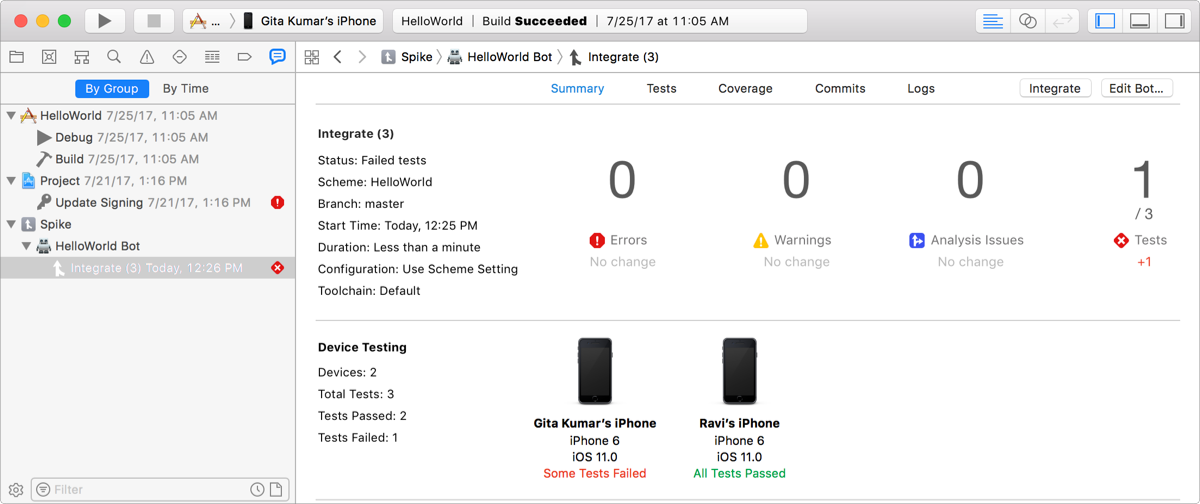
You can configure a bot to run your app on multiple devices and simulators connected to your Xcode Server.
Follow these steps to configure an existing bot. (The same settings appear on the sheets when you create a bot.)
In the Report navigator, Control-click the bot and choose Edit Bot from the pop-up menu.
In the sheet that appears, select Configuration, then select the Test checkbox.
The Test action needs to be enabled to configure devices.
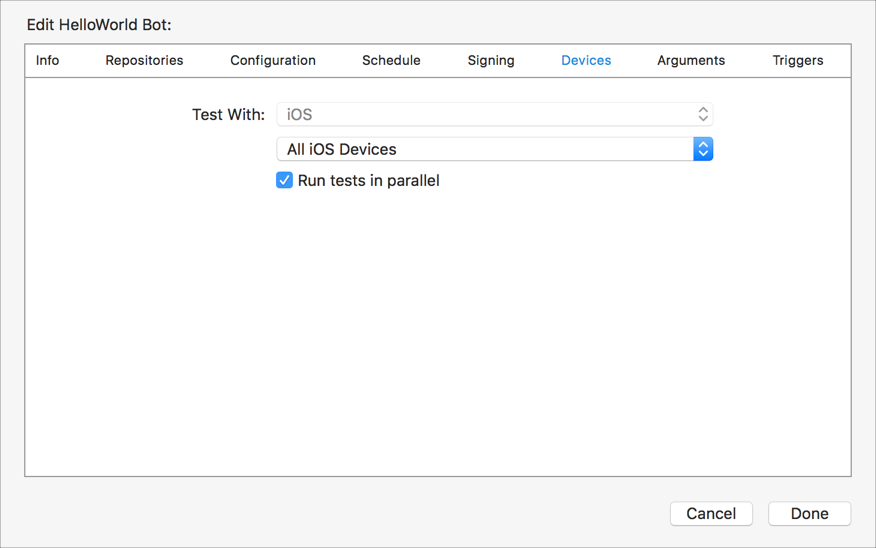
On the Devices pane, choose All [Platform] Devices from the pop-up menu (for example, choose All iOS Devices).
Optionally, deselect the “Run tests in parallel” checkbox.
On the Signing pane, choose the signing options.
If you use automatic signing, allow Xcode Server to manage signing for you. You must select the “Automatically register devices in my developer account” checkbox if the devices aren’t registered yet. Then click Add Server to Team so that the server can register new devices.
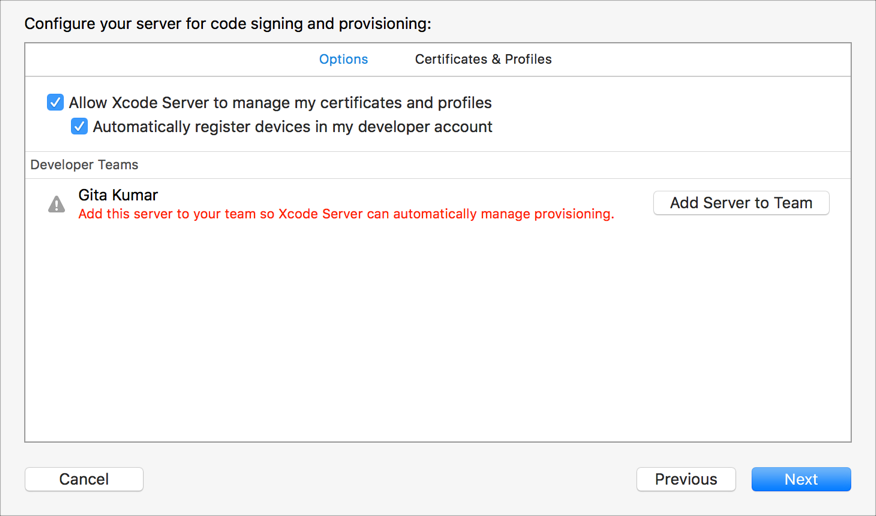
If you use manually signing, click Certificates & Profiles and next to the certificates and custom provisioning profiles you want to use, click Add to Server. The provisioning profile must contain all the devices you connect to the Mac running Xcode Server.
Click Done.
After you configure the bot, connect all the devices to the Mac running Xcode Server and run an integration to test the configuration. Then view the bot and integration results.