
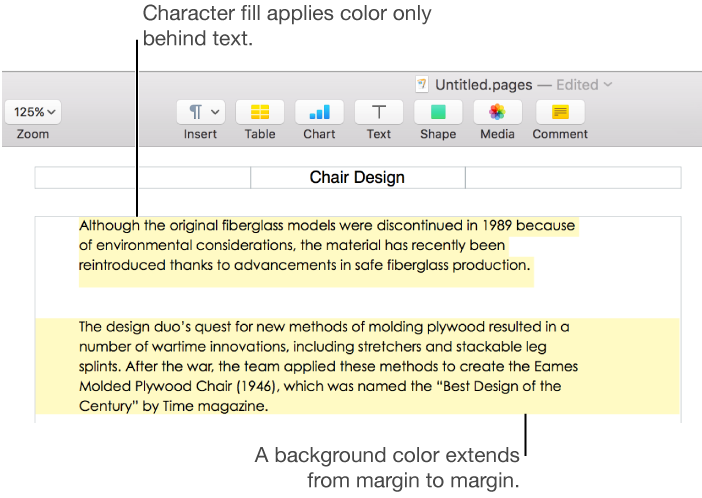
You can add color behind any selection of text—individual characters, words, or entire paragraphs—to create a highlight effect.
Note: You can also highlight text for review purposes by using commands in the Insert menu and the review toolbar, or by adding a comment. These highlights don't appear in printed documents. To learn more about this type of highlighting, see Add comments and highlight text.
When you want to highlight individual words in a sentence or lines in a paragraph, you select the text then apply a character fill color.
Select the text you want to highlight.
If the text is in a text box or shape, clicking the text box or shape affects all the text it contains.
Click the Style button near the top of the sidebar on the right.
If you don’t see a sidebar, or the sidebar doesn’t have a Style button, click  in the toolbar. If the text is in a text box, table, or shape, first click the Text tab at the top of the sidebar, then click the Style button.
In the Font section, click  .
.
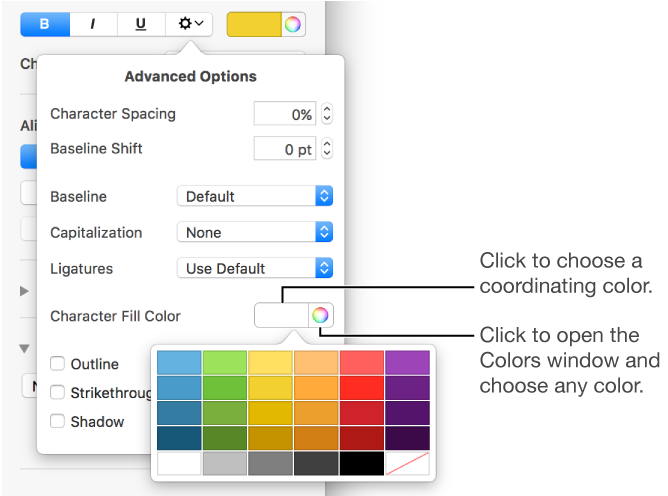
Next to Character Fill Color, click either the color well on the left or the color wheel on the right and choose a color.
The color well shows colors that match the template you’re using. The color wheel opens the Colors window, where you can choose any color.
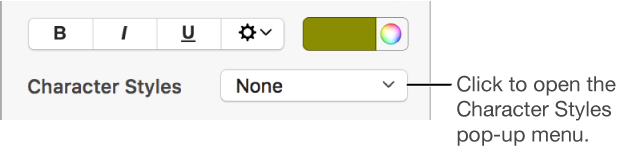
Tip: If you often add colors behind text, you can create a character style that uses a particular fill color. Each time you want to highlight with the color, select the text then choose the style from the Character Styles pop-up menu.
If the color you want to remove is behind selected words or lines and doesn’t extend from margin to margin, use this method to remove it.
Click or select the text.
If a comment opens, click Delete in the comment. The highlight was added using the review tools (see the top of this page for more information). If no comment opens, continue with the next steps.
Click the Style button near the top of the sidebar on the right.
If you don’t see a sidebar, or the sidebar doesn’t have a Style button, click in the toolbar. If the text is in a text box, table, or shape, first click the Text tab at the top of the sidebar, then click the Style button.
In the Font section, click .
Click the left color well next to Character Fill Color, then click the swatch in the bottom-right corner with the diagonal line.
Use this method when you want the color to extend from margin to margin as a block of color.
Click the paragraph or select multiple paragraphs where you want the background color to appear.
Tip: If you don’t want subsequent paragraphs to use the background color, add the color after you press Return to begin a new paragraph, or add the color when you’re finished typing.
Click the Layout button near the top of the sidebar on the right.
If you don’t see a sidebar, or the sidebar doesn’t have a Layout button, click in the toolbar.
Click the disclosure triangle next to Borders & Rules.
In the Background Color section, choose a color.
To see colors that go with your template: Click the color well on the left.
To see all colors: Click the color wheel, then choose a color in the Colors window.
To remove the color: Click the color well on the left, then click the swatch on the bottom-right with the diagonal line.
If the color you want to remove extends from margin to margin, you can use this method to remove it.
Note: If white selection handles appear around the text when you click it, the text is in a text box and you must remove the fill color.
Select the paragraphs where you want to remove the background color.
Click the Layout button near the top of the sidebar on the right.
If you don’t see a sidebar, or the sidebar doesn’t have a Layout button, click in the toolbar.
Click the disclosure triangle next to Borders & Rules.
In the Background Color section, click the color well on the left, then click the swatch on the bottom-right with the diagonal line.