
You and people you’re working with on a document can add comments to text, objects, charts, and table cells. Comments are useful for making notes to yourself, asking questions of reviewers, and conveying editorial suggestions.
You can also highlight text without adding a comment. When you don’t want comments and highlights to be visible, you can hide them.
With Pages on a Mac, you can use the review toolbar or Comments & Changes sidebar to review and edit the comments.
Select text, or click a table cell or an object you want to add a comment to, then do any of the following:
In the toolbar, click  .
.
In the review toolbar at the top of the document, click  . The review toolbar is visible if there are comments or tracked changes in the document.
Choose Insert > Comment (from the Insert menu at the top of your screen, not the Insert button in the toolbar).
Type in the comment, then click outside the comment to finish.
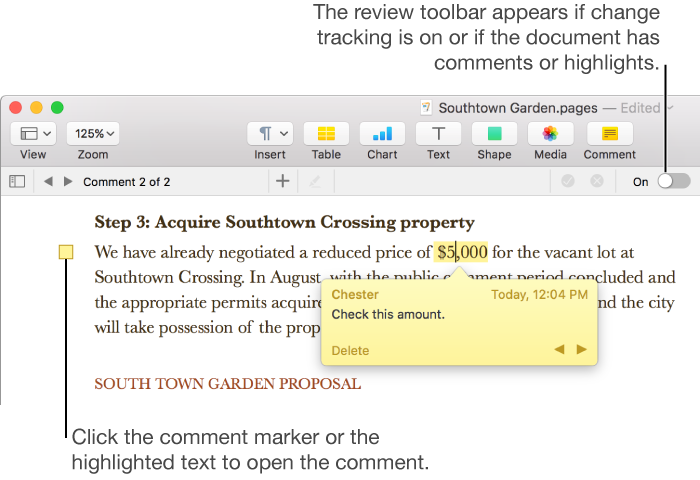
Comments are indicated with a square marker in the left margin of the document or next to an object. In table cells with a comment, a triangle appears in the corner. To read a comment, click the comment marker. To remove the comment, click Delete in the comment.
Choose Pages > Preferences (from the Pages menu at the top of your screen).
Click General.
Click the Text Size pop-up menu, then choose a size.
The setting applies to all of your Pages documents. You can change the setting at any time.
When you select text to add a comment, the text is highlighted; you can keep this highlight without writing a comment. Comments and highlights aren’t visible in printed documents.
When multiple people are working on a document, each person’s comments and highlights appear in a unique color. To learn how to change your color, see Set author name and comment color.
Note: If you want highlights that print, add color behind the text instead. This type of highlight doesn’t function as a standard text review tool.
Select the text you want to highlight.
Do one of the following:
Click in the toolbar.
The selected text is highlighted and a comment opens. If you don't want to add a comment, click anywhere on the page to close the comment. The text remains highlighted.
Click Highlight in the review toolbar at the top of the document.
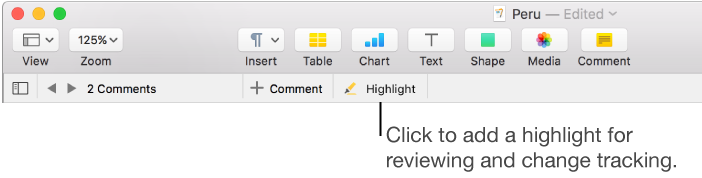
The review toolbar is visible only if there are already comments, highlights, or tracked changes in the document.
Press Shift-Command-H on the keyboard.
Choose Insert > Highlight (from the Insert menu at the top of your screen).
Note: The Insert button on the Pages toolbar doesn’t have the Highlight command.
To remove a highlight, move the pointer over the highlighted text, then click Delete in the comment that appears. If no comment appears, that means the highlight was added as color behind the text. To remove it, remove the character fill color.
You can’t highlight text in table cells, but you can add conditional highlighting to a cell to change the cell’s appearance based on its value.
You can quickly review comments in a document by navigating from one comment to the next. As you review, you can edit comments or delete them.
Do any of the following:
Read a comment: Move the pointer over highlighted text, or click a comment marker. If the Comments sidebar is open, move the pointer over the comment marker or highlight, then read the comment in the sidebar.
Navigate from one comment to the next: Click the arrows in a comment or on the left side of the review toolbar to move to the previous or next comment. If changes are being tracked, you also navigate to changes.
Edit a comment: Click the comment marker, then edit the text in the comment. If the Comments sidebar is open, edit the comment in the sidebar.
Delete a comment: Click the comment marker, then click Delete in the comment.
You can show or hide comments in the document and in the Comments sidebar if it’s showing.
Do any of the following:
Click  in the toolbar, then choose Show Comments or Hide Comments.
Choose View > Comments & Changes > Show Comments or Hide Comments (from the View menu at the top of your screen).
At the top of the Comments sidebar on the left side of the Pages window, click View Options, then choose Show Comments or Hide Comments.
If change tracking is on and you hide comments, the review toolbar still shows, but comments aren’t included in the navigation.
You can edit and review comments in the Comments sidebar on the left side of the Pages window. If you’re tracking changes in the document, those changes also appear there.
To open the Comments sidebar, click in the toolbar, then choose Show Comments Pane (or Show Comments & Changes Pane).
If change tracking is on, you can also click  on the left side of the review toolbar. Click it again to close the sidebar.
To change what’s shown in the sidebar, click View Options at the top of the sidebar to sort by page or date, filter comments by author, and hide comments or hide changes.
If you choose Sort by Document from the View Options menu, the sidebar scrolls as you scroll the document.
If you filter comments by author so that your comments aren’t visible in the sidebar, then you add a comment, the filter switches back to Show All.
Here are some tips for working in the sidebar:
To scroll the sidebar or the document so you can see both the change and its corresponding text, click the sidebar entry or the change in the document.
The date on a comment doesn’t change when you edit the comment.
Long comments may be shortened in the sidebar. Double-click the comment to expand it.
To widen or narrow the sidebar, drag its right edge.