
Start by exploring the highlights below.
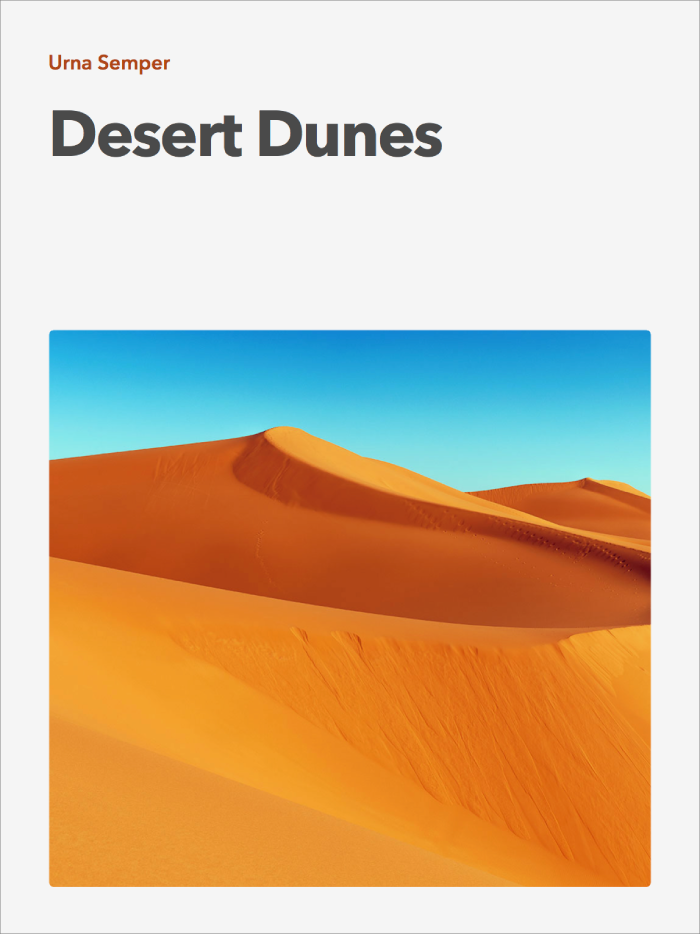
All documents begin with a template that you use as a starting point. You can create word-processing documents, like reports and letters, or page layout documents, like posters and newsletters. Then, replace placeholder text and images with your own content. For step-by-step instructions and more information, see Create a document or About word-processing and page layout documents.
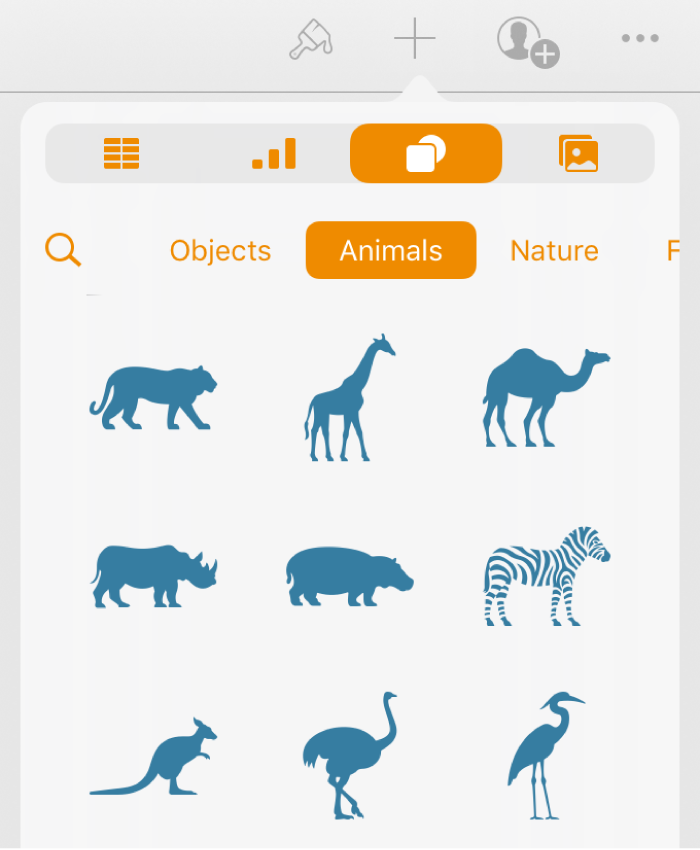
Add objects like tables, charts, text boxes, shapes, drawings, and media (images, audio, and video) to your document by tapping  , then choosing the type of object you want to add. You can even record video or audio, or take a photo in Pages. For step-by-step instructions, see Add and replace text, Add images, Add shapes, Add charts, Take a photo or video, or Record audio.
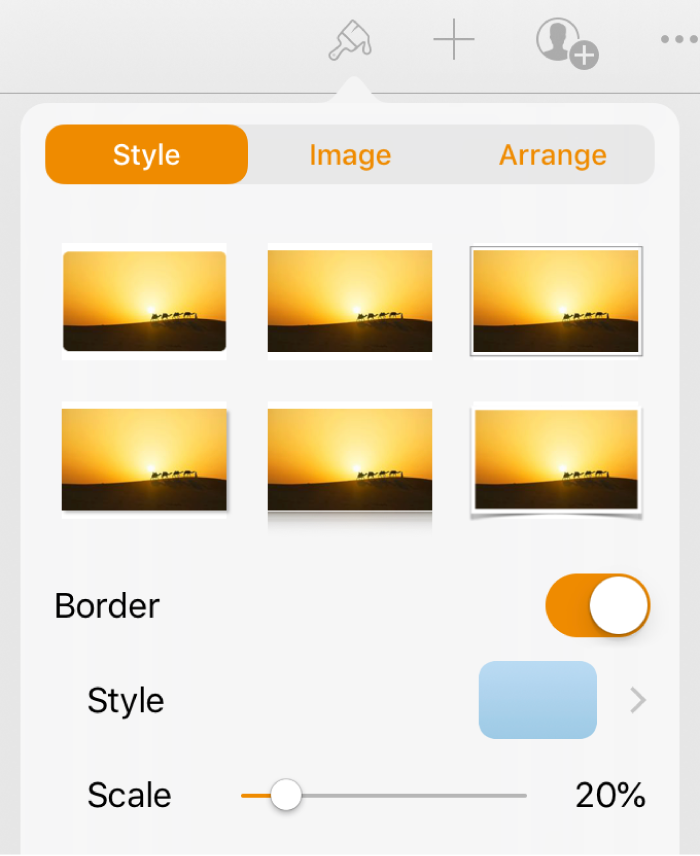
You can modify the look of everything in your document. For example, change the font, color, or size of text; add a drop shadow to an image; or fill shapes with colors or images. Just select the text or object on the page, tap  , then make your choices. For step-by-step instructions, see Change the look of text, Fill shapes and text boxes, or Add a reflection or shadow.
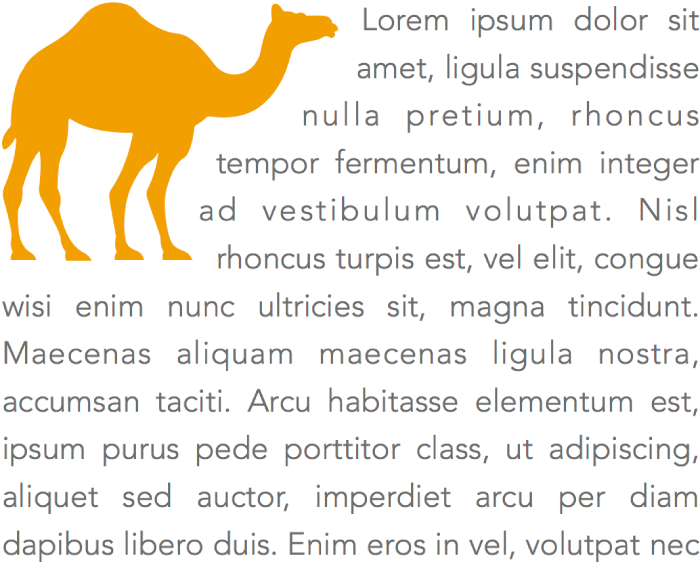
Get creative with how text flows through your document. Have an image? Wrap your text around it. Want text to flow in irregular columns or continue a sidebar onto another page? Link text boxes so the text flows from one box to the next. For step-by-step instructions, see Place objects with text or Link text boxes.
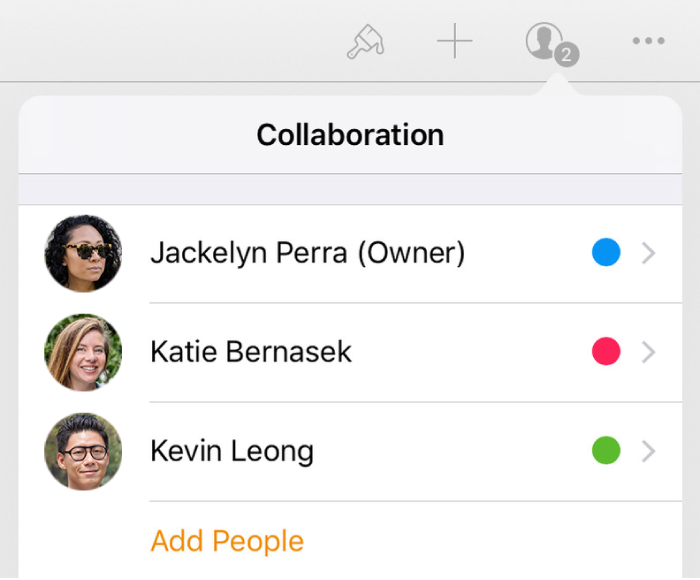
Invite others to work with you on your document. Everyone you invite can see changes as they’re made, but you control who can edit or only view the document. Tap  , tap Collaborate With Others, then invite people and set their access. For step-by-step instructions, see Invite others to collaborate or learn more about collaboration.
Want to learn more? Tap  in the top-left corner of this window to explore the Table of Contents, or tap
  , then type a question or search term in the search field.