
You can display your data using 2D, 3D, and interactive charts.
When you create a chart in Pages, you type chart data in the Chart Data editor (not in the chart itself). If you later make changes in the Chart Data editor, the chart updates automatically.
Tap  , then tap
  .
.
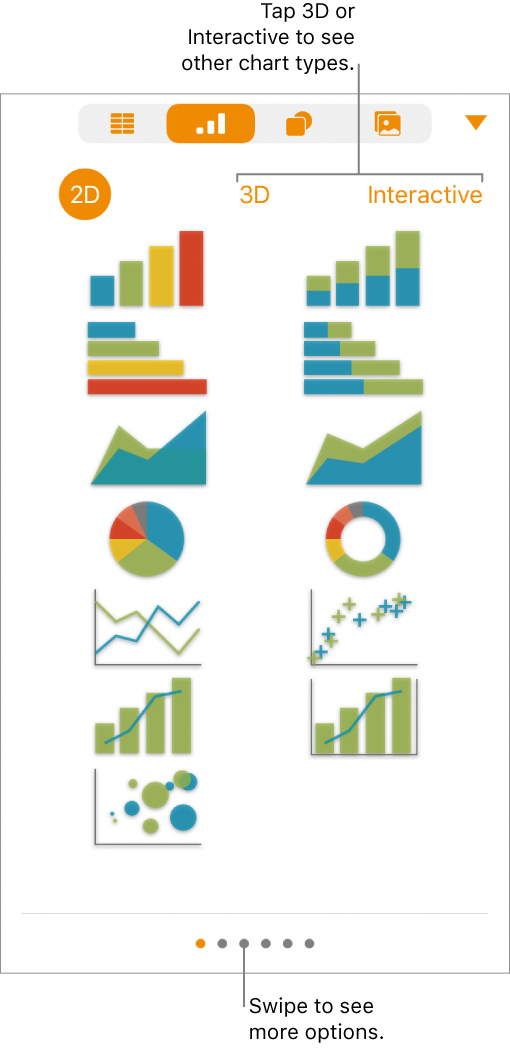
Tap 2D or 3D to see the types of charts you can add, then swipe left or right to see more options for each type of chart.
Tap a chart to add it to the page, then drag it to where you want it.
When you add a 3D chart, you see  at its center. Drag this control at any time to adjust the chart’s orientation.
For a donut chart, to resize the center hole, tap  , then drag the Inner Radius slider to make the opening larger or smaller.
To add your data, tap the chart, tap Edit Data, then do any of the following:
Enter data: Tap placeholder text, then enter your own data.
Enter dates, times, and durations: Tap  , turn on Full Keyboard, then enter your data.
Change whether rows or columns are plotted as a data series: Tap in the toolbar, then tap an option.
Tap Done in the toolbar.
An interactive chart presents data in stages so that you can emphasize the relationship between groups of data. Interactive charts can be used to show data such as sales by group over time, expenses by department, and population changes by region per continent. The example below shows the growth of three species during a three-year period.
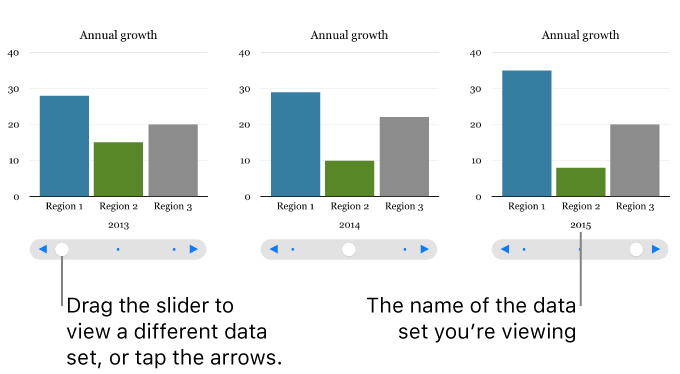
You can interact with the chart using a slider and buttons or buttons only.
Tap , tap , then tap Interactive.
Tap a chart to add it, then drag it to where you want it on the page.
To add or edit the data, tap the chart, tap Edit Data, then do any of the following:
Enter data: Tap placeholder text, then enter your own data.
Enter dates, times, and durations: Tap , turn on Full Keyboard, then enter your data.
Change whether rows or columns are plotted as a data series: Tap in the toolbar, then tap an option.
Tap Done in the toolbar.
To change the type of control used for interacting with the chart, tap the chart, tap , tap Chart, tap Interactive Chart, then tap Buttons Only.
If you don’t see Interactive Chart, swipe up from the bottom of the controls.