
You can change how text looks by changing its font, size, or color, or by adding bold, italic, or other formatting. You can also add color behind text to highlight it.
Select the text you want to change—or tap a text box, shape, or table cell—then tap  .
.
If you don’t see text controls, tap Cell or Text.
Do any of the following:
Apply a different paragraph style: Tap the style name below Paragraph Style, then tap a new paragraph style (scroll to see more).
Change the font: Tap Font, then tap a new font. To see more options for the font, tap  next to the font name, then tap a format (condensed, light, or semibold, for example).
Apply bold, italic, underline, or strikethrough: Tap any of the buttons below Font.
Change the size: Tap one of the buttons next to Size to decrease or increase the font size.
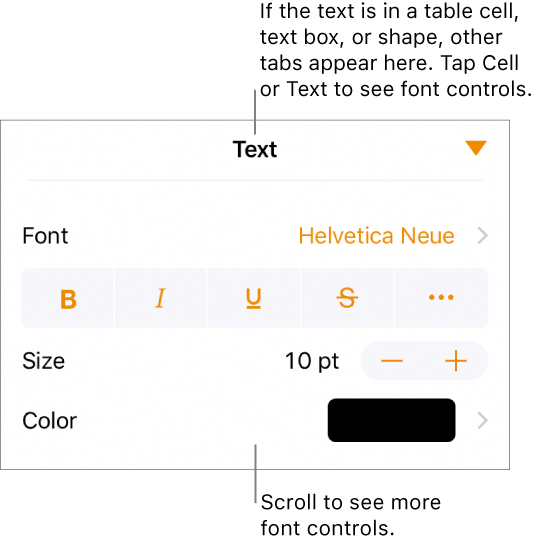
Select the text you want to change—or tap a text box, shape, or table cell, then tap .
If you don’t see text controls, tap Cell or Text.
Tap Text Color or Color, then choose one of the following:
A color or gradient designed to go with the template: Tap Preset, swipe left or right to see all choices, then tap a color.
Any color: Tap Color, swipe up or down to see all choices, then tap a color.
To preview text in different colors, touch and hold a color, then drag across the grid. A color label appears for each previewed color to help you reproduce an exact match. Release your finger to select a color.
A color from elsewhere on the page: Tap  , then tap any color outside of the selected text.
To preview colors, touch and hold a color on the page, then drag across other colors on the page. Release your finger to select a color.
You can add color behind any selection of text—individual characters, words, or entire paragraphs—to create a highlight effect.
Select the text you want to change—or tap a text box or shape—then tap .
If you don’t see text controls, tap Text.
Tap  in the Font section of the controls.
Swipe up, then tap Text Background.
Swipe to see more colors, then tap one.
For more information about color options, see the task above.
To remove the background color from selected text, tap Preset, then swipe to the black and white options and tap No Fill.
You can keep text formatting consistent in a document by using text styles.