
You can record audio or video on your device and add it directly to a page. For instance, when you create reports or books, you can record yourself reading a page so your readers can play it back.
If your device has a camera, you can record a video and insert it directly into your document.
On the page where you want to add the video, do one of the following:
Tap  in the bottom-right corner of a media placeholder, then tap Take Photo or Video.
Tap  , tap
, tap  , then tap Camera.
Tap Video, then tap  to start recording; tap
  to stop.
To watch the video, tap  .
.
Do one of the following:
Insert the video: Tap Use Video.
Take the video again: Tap Retake.
Cancel and return to the document: Tap Retake, then tap Cancel.
Drag any blue dot to resize the video, then tap Done.
You can’t edit the video in Pages. The video is available in the Photos app on your device, where you can edit it.
Tap , tap , then tap Record Audio.
Note: After you record, you insert the recording wherever you want in the document.
Tap  and start recording; when you want to stop, tap
  .
.
While you record, you can scroll, zoom, and view different pages.
To preview your recording, tap  .
.
To preview from a specific point, swipe left or right on the recording to position the orange line, then tap .
To edit your recording, tap  , then do any of the following:
Rerecord a section: Drag the orange handles to select the section. Tap to record over that section.
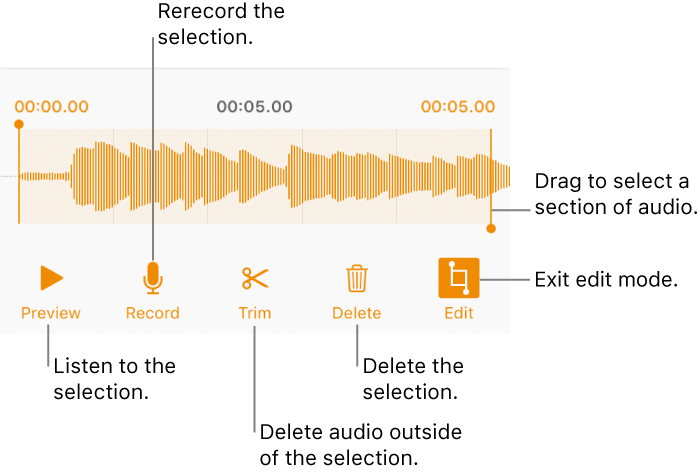
Trim: Drag the orange handles to define the section you want to keep. Tap  to delete everything outside of the handles.
Delete all or part of the recording: Drag the orange handles to define the section you want to delete. Tap  to delete everything inside the handles.
Go to the page where you want to add the recording, tap Insert or Done at the top of the screen, then drag the recording to move it.
To play your recording, tap  to select it, then tap it again. To edit or delete the recording after you add it to a page, tap it, then tap Edit or Delete.
You can also share your recording as an audio file. Tap the recording on the page, tap  , then tap Share.