With Family Sharing, up to six family members can share their iTunes Store, App Store, and iBooks Store purchases, a family calendar, and family photos, all without sharing accounts. For information about a family subscription to Apple Music, see Access music.
Family Sharing requires you to sign in to iCloud with your Apple ID. You will also be asked to confirm the Apple ID you use for the iTunes Store, App Store, and iBooks Store. Family Sharing is available on devices with iOS 8 or later, Mac computers with OS X 10.10 or later, and PCs with iCloud for Windows 5 or later. You can be part of only one family group at a time.
Set up Family Sharing. Go to Settings > [your name] > Set Up Family Sharing. Follow the onscreen instructions to set up Family Sharing as the family organizer. The family organizer invites family members to join the family group and agrees to pay for any iTunes Store, App Store, and iBooks Store purchases those family members initiate while part of the family group.
When a family member initiates a purchase, it is billed directly to the family organizer’s account. Once purchased, the item is added to the initiating family member’s account and is shared with the rest of the family. If Family Sharing is ever disabled, purchased items remain with the person who chose to purchase them, even if they were paid for by the family organizer.
Create an Apple ID for a child. Go to Settings > [your name] > Family Sharing, scroll to the bottom of the screen, then tap “Create an Apple ID for a child.” For more information, see the Apple Support article Family Sharing and Apple ID for your child.
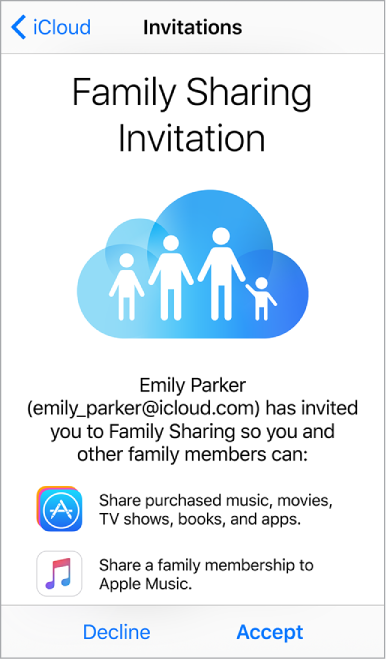
Accept an invitation to Family Sharing. Tap Accept in your invitation. Or, if you are near the organizer during the setup process, you can enter the Apple ID and password you use for iCloud on the organizer’s device.
Access shared purchases from the iTunes Store. Open iTunes Store, tap More, tap Purchased, then choose a family member.
Access shared purchases from the iBooks Store. Open iBooks, tap Purchased, then choose a family member.
Access shared purchases from the App Store. Open App Store, tap Updates, tap Purchased, then choose a family member.
Turn on Ask to Buy. The family organizer can require young family members to request approval for purchases or free downloads. Go to Settings > [your name] > Family Sharing, then tap the person’s name.
Note: Age restrictions for Ask to Buy vary by area. In the United States, the family organizer can enable Ask to Buy for any family member under age 18; for children under age 13, it’s enabled by default.
Hide your iTunes Store, App Store, and iBooks Store purchases. To hide all your purchases from family members, go to Settings > [your name] > Family Sharing > [your name], then turn off Share My Purchases. On your computer, you can also hide specific purchases so they aren’t available to other family members. For more information, see the Apple Support article Hide and unhide iTunes Store, App Store, or iBooks purchases.
Share photos or videos with family members. When you set up Family Sharing, a shared album called Family is automatically created in the Photos app on all family members’ devices. To share a photo or video with family members, open the Photos app, then view a photo or video or select multiple photos or videos. Tap  , tap iCloud Photo Sharing, add comments, then share to your shared family album. See iCloud Photo Sharing.
Add an event to the family calendar. When you set up Family Sharing, a shared calendar called Family is automatically created in the Calendar app on all family members’ devices. To add a family event, open the Calendar app, create an event, then choose to add the event to the family calendar. See Share iCloud calendars.
Set up a family reminder. When you set up Family Sharing, a shared list is automatically created in the Reminders app on all family members’ devices. To add a reminder to the family list, open the Reminders app, tap the family list, then add a reminder to the list. See Reminder lists.
Share your location with family members. Family members can share their location by tapping Settings > [your name] > iCloud > Share My Location. To find a family member’s location, use the Find My Friends app. Or, use the Messages app (iOS 8 or later). For more information about using Messages to share or view locations, see Share photos, videos, and audio.
Keep track of your family’s devices. If family members enabled Share My Location in iCloud, you can help them locate missing devices. Open Find iPhone on your device or at iCloud.com. For more information, see Family Sharing.
Leave Family Sharing. Go to Settings > [your name] > Family Sharing > [your name], then tap Leave Family Sharing. If you are the organizer, tap Stop Family Sharing. For more information, see the Apple Support article Leave Family Sharing.