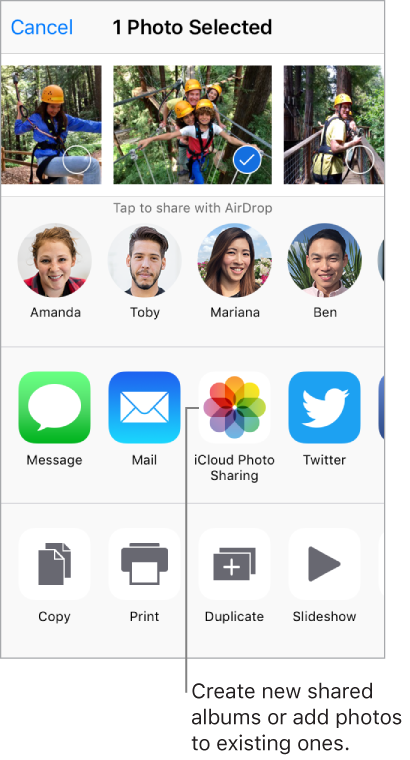
With iCloud Photo Sharing, you can invite others who are using iCloud Photo Sharing to view your photos and videos. If they’re using iCloud Photo Sharing on a device with iOS 6 or later or on a Mac with OS X 10.8 or later, they can view your albums and leave comments. If they’re using iOS 7 or later or OS X 10.9 or later, they can add their own photos and videos. You can also publish your album to a website for anyone to view. iCloud Photo Sharing works with or without iCloud Photo Library and My Photo Stream.
Note: To use iCloud Photo Sharing, iPod touch must be connected to the Internet.
Turn on iCloud Photo Sharing. Go to Settings > [your name] > iCloud > Photos. Or go to Settings > Photos & Camera.
Share photos and videos. While viewing a photo or video, or after selecting multiple photos or videos, tap  , tap iCloud Photo Sharing, add comments, then share to an existing shared album or create a new one. You can invite people to view your shared album using the email address or the mobile phone number they use to receive text messages.
Enable a public website. Tap Shared, tap an album, tap People, then turn on Public Website. Tap Share Link if you want to announce the site.
Add items to a shared album. Tap Shared, tap an album, tap  , select items, then tap Done. You can add a comment, then tap Post.
Delete photos from a shared album. Tap Shared, tap an album, tap Select, select the photos or videos you want to delete, then tap  . You must be the owner of the shared album or the photo.
Delete comments from a shared album. Tap the photo or video that contains the comment. Tap the comment area at the bottom of the screen, touch and hold the comment, then tap Delete. You must be the owner of the shared album or the comment.
Rename a shared album. Tap Shared, tap Edit, then tap the name and enter a new one.
Add or remove subscribers, or turn Notifications on or off. Select the shared album, then tap People.
Subscribe to a shared album. When you receive an invitation, tap the Shared tab  , then tap Accept. You can also accept an invitation in an email.
Add items to a shared album you subscribed to. Tap Shared, tap an album, then tap . Select items, then tap Done. You can add a comment, then tap Post.
See your Family album. When Family Sharing is set up, a shared album called Family is automatically created in Photos on all family members’ devices. Everyone in the family can contribute photos, videos, and comments to the album, and be notified whenever something new is added. For more information about setting up Family Sharing, see Family Sharing.