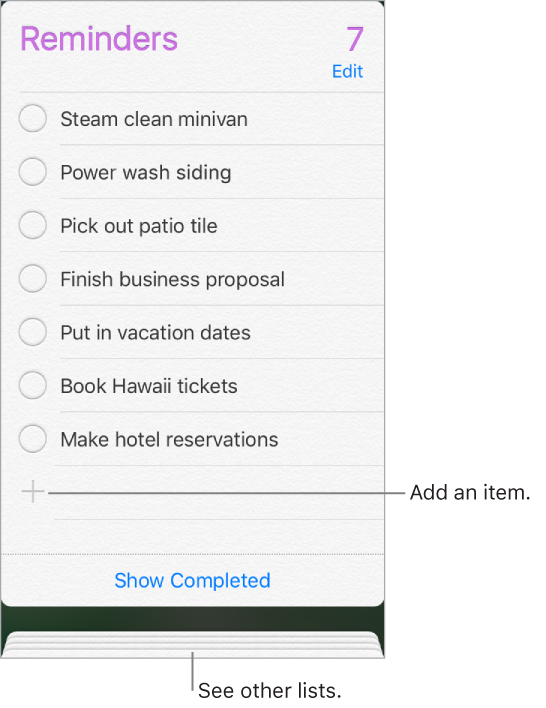
With Reminders you can keep track of all the things you need to do.
Add a reminder. Tap a blank line in a list.
Share a list using iCloud. While viewing a list, tap Edit, tap Sharing, then tap Add Person. The people you share with also need to be iCloud users. Anyone who accepts the invitation can add, delete, and mark items as completed. Family members can also share a list. See Family Sharing.
Ask Siri. Say something like:
“Remember to take an umbrella”
“Add artichokes to my groceries list”
“Read my work to-do list”
“Remind me to call my mom at 5”
Set a default list for new reminders. Go to Settings > Reminders.
Delete a list. While viewing a list, tap Edit, then tap Delete List. All of the reminders in the list are also deleted.
Delete a reminder. Swipe the reminder left, then tap Delete.
Change the order of lists. Touch and hold the list name, then drag the list to a new location. To change the order of items in a list, tap Edit.
What list was that in? Scroll to the top to see the search field. All lists are searched by the reminder’s name.
Keep your reminders up to date on other devices. Go to Settings > [your name] > iCloud, then turn on Reminders. Some other types of accounts, such as Exchange, also support Reminders. You can change how reminders in the past are synced in Settings > Reminders.
With OS X 10.10 or later, you can hand off reminders you’re editing between your Mac and iPod touch.