
In some cases, you may want to distribute an app outside the Mac App Store. Because that app won’t be distributed through the Mac App Store, sign your app with a Developer ID certificate to assure users that you’re a trusted developer.
On macOS, if your app isn’t distributed through the Mac App Store or Developer ID-signed, it won’t launch unless Gatekeeper is completely disabled. Users have the option of enabling or disabling Developer ID-signed apps in System Preferences.
Therefore, sign your apps using a Developer ID Application certificate and installer packages using a Developer ID Installer certificate. Thoroughly test the end-user experience using a Gatekeeper-enabled Mac before distributing your app outside of the Mac App Store.
Note: Only the team agent that belongs to either the Apple Developer Program or the Apple Developer Enterprise Program is allowed to create Developer ID certificates and sign apps or installer packages using them. Also, Developer ID-signed apps shouldn’t use capabilities that require configuration in iTunes Connect.
First prepare your app for distribution and then create an archive of your app.
WARNING: To use Game Center or In-App Purchase in a Developer-ID signed app, create an app record and configure the service in iTunes Connect but don’t upload your app.
Immediately after creating the archive, optionally validate the archive of your app, as if you are submitting it to the App Store, and fix any validation errors before continuing (for example, add app icons before you distribute your app).
Export your macOS app and select Developer ID as the distribution method to code sign it with a Developer ID Application certificate.
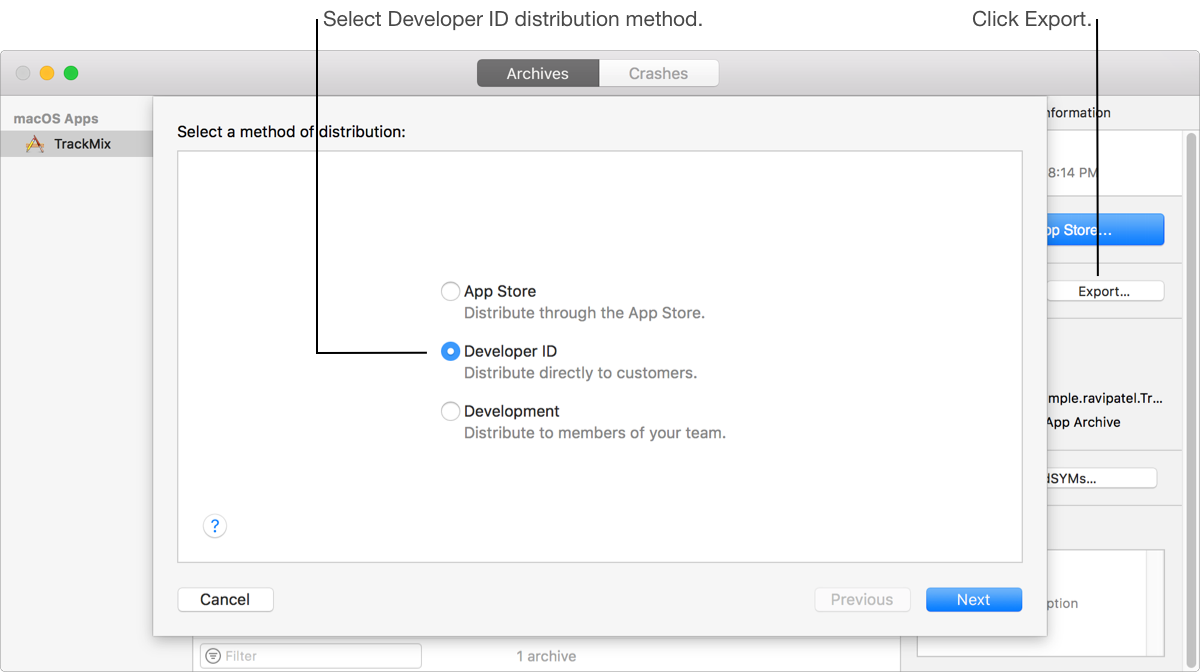
If you select "Automatically manage signing” as the signing option, Xcode creates the Developer ID Application certificate and if necessary, a distribution provisioning profile for you. You can also create Developer ID signing certificates using Accounts preferences.
Alternatively, you can create and sign a Mac Installer Package with a Developer ID Installer certificate.
Verify that the Developer ID-signed app launches correctly with Developer ID apps enabled. This requires that you quarantine the app first.