
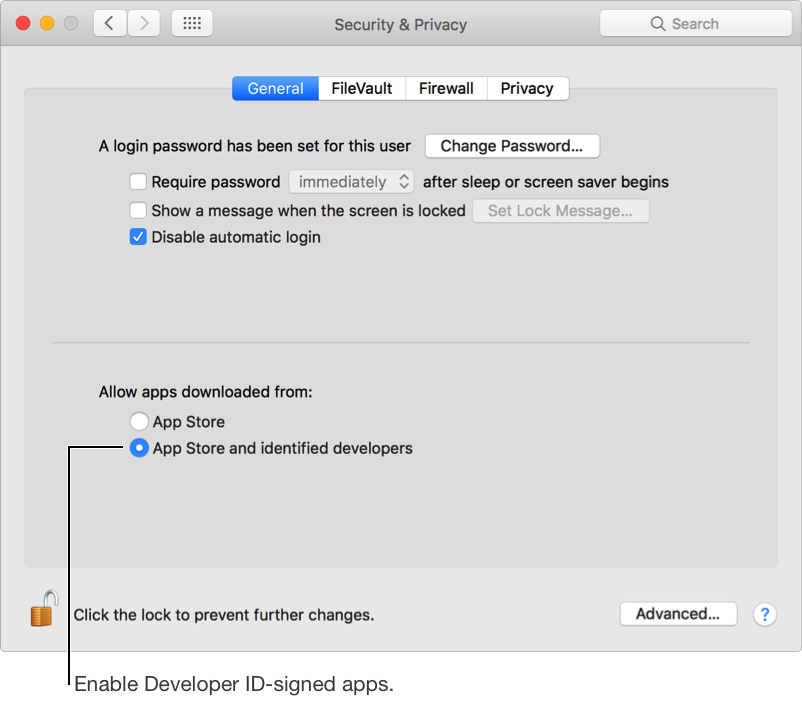
On macOS, only apps distributed through the App Store are allowed to open by default. Therefore, users may need to change their Security & Privacy settings to allow your Developer ID-signed app to launch. When testing your app, you can also enable and disable Gatekeeper, using the spctl(8) command-line utility.
In the Finder, launch System Preferences and select Security & Privacy.
Click the lock button if it appears locked, and enter the administrator password.
Select “App Store and identified developers.”
In Terminal, enter the spctl command.
To enable Gatekeeper, enter:
$ sudo spctl --master-enableTo disable Gatekeeper, enter:
$ sudo spctl --master-disablePress Return.
When prompted, enter your administrator password.
In Terminal, enter the following command:
$ spctl --statusPress Return.
If Gatekeeper is enabled, the output of this command is:
assessments enabledIf Gatekeeper is disabled, the output of this command is:
assessments disabled