
After exporting your app using a Developer ID certificate, you can test whether your app was signed correctly and simulate the launch behavior when Developer ID apps are enabled or disabled.
Verify whether your Developer ID app is signed correctly.
Enable Developer ID-signed apps using Security & Privacy preferences.
In Terminal, enter the following command by replacing TrackMix.app with the path to your app.
$ spctl -a -v TrackMix.appPress Return.
If the app is correctly signed, the output of this command is:
./TrackMix.app: acceptedsource=Developer IDTo thoroughly test your Developer ID-signed app, simulate launching the app on a Mac not used for development. If you enable "App Store and identified developers” in System Preferences, a quarantined copy of your app launches only if it’s Developer ID signed.
For details on quarantine files, read the File Quarantine article.
Enable Developer ID-signed apps using Security & Privacy preferences.
Quarantine a copy of your app. You can do this in either of the following ways:
Email the app to yourself and use the copy that Mail downloads.
Host the app on your own local or remote server and use the copy that Safari downloads.
In the Finder, locate the quarantined copy of the app and double-click it.
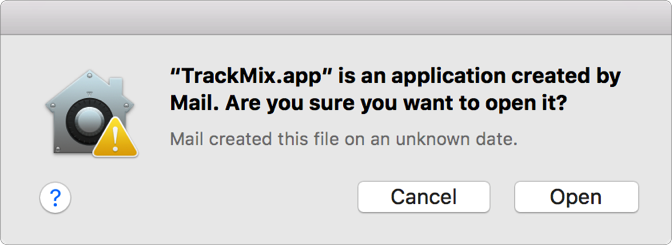
If the app is signed with a Developer ID certificate, an alert appears asking whether you’re sure you want to open the app.
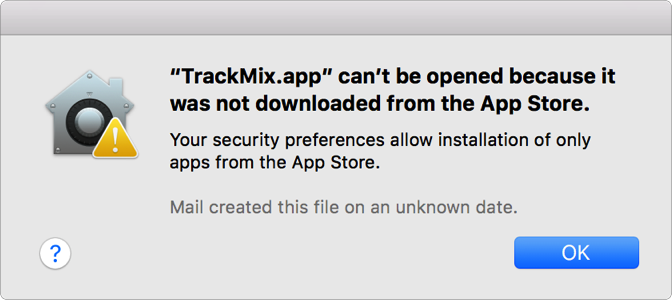
If the app is not signed with a Developer ID certificate, an alert appears that blocks your app from launching.
Note: Gatekeeper protects a Mac by preventing first-time opening of apps from unidentified developers. Apps previously opened by a user are no longer quarantined, and Gatekeeper doesn’t prevent them from launching.