Go to a webpage: Enter the page’s name or URL in the Smart Search field, then pick a suggestion or press Return to perform a search.

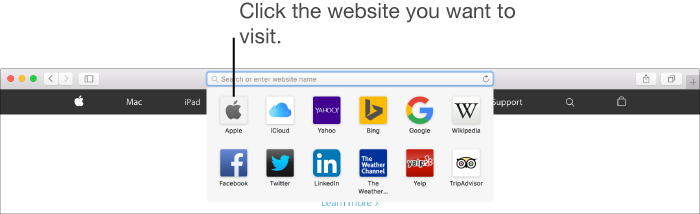
Go to a favorite website: Click in the Smart Search field to see your favorite websites, then click the icon of the website you want to visit. The Favorites view goes away if you start typing, and it doesn’t appear if you click the field while you’re viewing the Favorites or Top Sites page.
Tip: You can drag the icons to rearrange them.
Search: Enter a word or phrase in the Smart Search field. As you type, Safari Suggestions appear. You can either choose a suggestion or press Return to search for what you typed. For more information, see Find what you’re looking for.
Hand off webpages between devices: Use Handoff to automatically pass the webpage you’re viewing between your Mac and iOS device. When your devices are near each other, a Safari Handoff icon appears on the left side of the Dock on your Mac or on the Lock screen on your iOS device. Click or swipe the icon to open Safari to the webpage you were viewing. (You can’t use Handoff to pass Private Browsing windows.)
Preview a webpage link: If your trackpad supports it, force click the link.
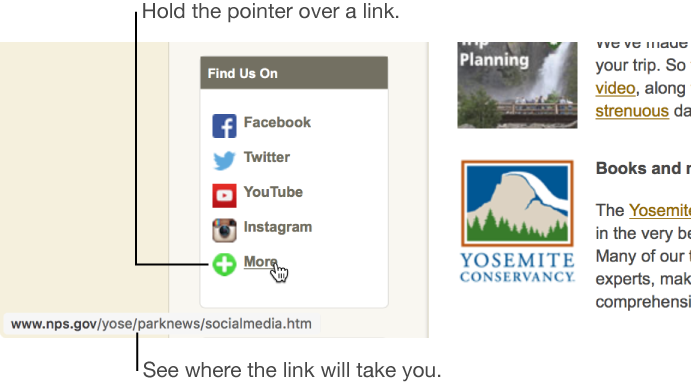
See where a link goes: Hold the pointer over a link to see the website URL in the status bar at the bottom of the window. If you don’t see the status bar, choose View > Show Status Bar.