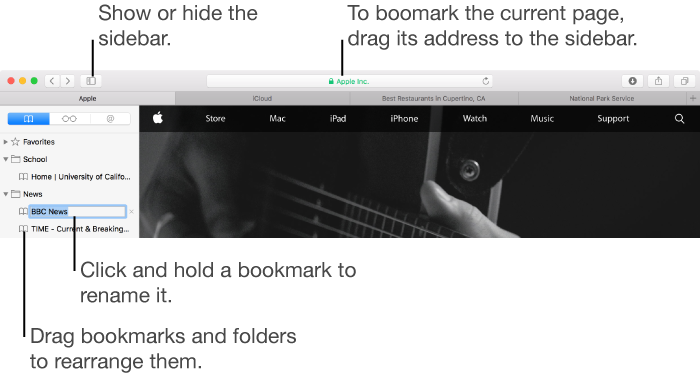

Bookmark your favorite webpages so you can quickly revisit them.
See all your bookmarks in the sidebar: Click the Sidebar button  in the toolbar, then click the Bookmarks button
  . Or, choose Bookmarks > Show Bookmarks.
Add a bookmark for the current webpage: Click the Share button  in the toolbar, choose Add Bookmark, then choose a Bookmarks folder.
You can also move the pointer over the Smart Search field, click and hold the One-Step Add button  that appears at the left end of the field, then choose a bookmarks folder from the list. Or, drag a URL to the bookmarks sidebar.
Visit a bookmarked page: Click it in the sidebar, choose it from the Bookmarks menu, or click it in the Favorites bar. For more information about the Favorites bar, see View Favorites and Top Sites.
Search for a bookmark: Enter text in the search field at the top of the sidebar. You may have to scroll up to reveal the search field.
Manage bookmarks in the sidebar: Show the bookmarks sidebar (see above), then do any of the following:
Add a new bookmarks folder: Control-click a bookmark in the sidebar, then choose New Folder from the shortcut menu.
Rearrange and copy bookmarks and folders: Drag a bookmark or folder to a new location. To copy a bookmark, Option-drag it.
Edit a bookmark or folder name: Control-click it, then choose Rename from the shortcut menu. You can also force click the name, or click and hold the name until it’s highlighted, then enter a new one.
Remove a bookmark: Command-click bookmarks in the sidebar to select them, then press Delete. Or, click and hold the bookmark’s name until it’s highlighted, then click the Remove button  to the right of the name.
Edit bookmarks in the Bookmarks Editor: Click Edit at the bottom of the bookmarks sidebar, or choose Bookmarks > Edit Bookmarks.
Add a bookmarks folder: Click New Folder. Or, select one or more bookmarks, then Option-click New Folder to create a folder that contains the selected bookmarks.
Rearrange and copy bookmarks: Drag a bookmark or folder to another location. To copy a bookmark, hold down the Option key while you drag it.
Edit a bookmark or folder name: Select a bookmark or folder, then press Enter.
Remove bookmarks: Select bookmarks, then press Delete.
Tip: Safari uses iCloud to keep your bookmarks the same on all your Mac computers and iOS devices that have Safari turned on in iCloud preferences. With iCloud, your bookmarks and Reading List are archived automatically, and you can restore them from an earlier version at any time.