Safari makes it easy to find exactly what you’re looking for. As you type in the Smart Search field, Safari provides Safari Suggestions for news, Wikipedia articles, iTunes music, weather forecasts, professional sports team and player info, stock prices, help from Apple, locations, and more, as well as suggestions from your search engine.
Start a search: Enter a word or phrase in the Smart Search field. As you type, Safari Suggestions appear. Choose a suggestion or press Return to search using your selected search engine.
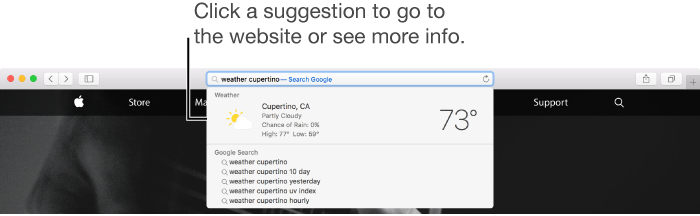
When you click a suggestion, Safari takes you to the webpage or provides you with an interactive preview containing handy information.
Tip: When you have Safari turned on in iCloud preferences on your Mac and iOS devices, Safari shows browsing history, bookmark, and open website (iCloud Tabs) suggestions from all your devices.
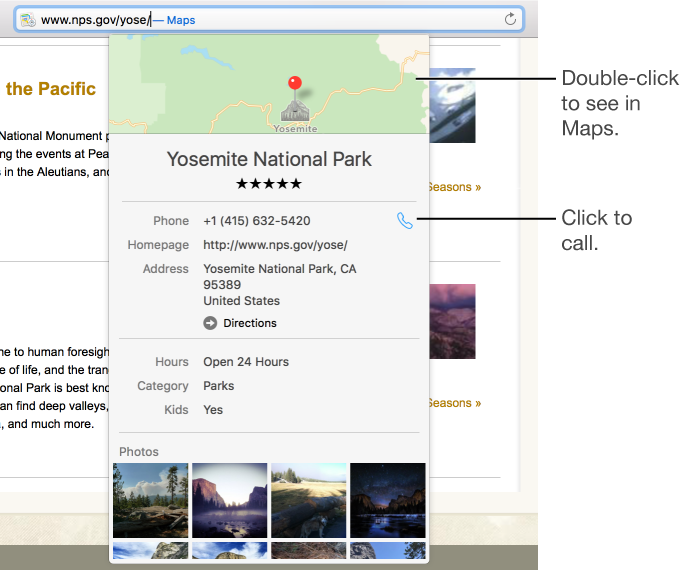
Take action from a Safari Suggestions preview: Many Safari Suggestions have interactive previews. Click items or links in the preview to send email, get directions, make phone calls, play song clips, and more.
Go back to the last full search you performed: Select the window or tab where you previously searched, then choose History > Search Results SnapBack.
Repeat a search: Delete all text in the Smart Search field, click the magnifying glass
, then choose a recent search from the list.
Search the current page: Press Command-F, then type a word or phrase in the search field that appears in the top-right corner. To see the next occurrence on the page, click the Next button
to the left of the field.
Quickly search a site you visited before: Enter the name of the site, followed by your search term. For example, enter “wiki einstein” to search Wikipedia for “einstein.”
Switch search engines: Delete all text in the Smart Search field, click the magnifying glass
, then choose a search engine from the list.
You can also switch search engines in the Search pane of Safari preferences.
You can also search with Spotlight to get Spotlight Suggestions and find information on your Mac.
Safari Suggestions and privacy
Safari search includes Safari Suggestions from the Internet, iTunes, the App Store, movie showtimes, locations nearby, and more.
When you have Safari Suggestions enabled in Safari, your search queries, the Safari Suggestions you select, and related usage data will be sent to Apple. If you have Location Services on your Mac turned on, when you make a search query to Safari with Safari Suggestions enabled the location of your Mac at that time will be sent to Apple. To provide you with more relevant music and video suggestions, if your Mac can access music or video subscription services, then information such as the names of the subscription services and types of subscriptions may be sent to Apple. Your account name, number and password will not be sent to Apple. Location, search queries, and usage information sent to Apple will only be used by Apple to make Safari Suggestions more relevant and to improve other Apple products and services.
If you do not want your Safari search queries and Safari Suggestions usage data sent to Apple, you can turn off Safari Suggestions in Safari. Simply choose Safari > Preferences, click Search, then deselect the checkbox for Safari Suggestions.
You can turn off Location Services for Safari Suggestions in the Security & Privacy pane of System Preferences on your Mac by clicking on the Privacy tab, selecting Location Services, selecting Details next to System Services, then deselecting Safari & Spotlight Suggestions. If you turn off Location Services on your Mac, your precise location will not be sent to Apple. To deliver relevant search suggestions, Apple may use the IP address of your Internet connection to approximate your location by matching it to a geographic region.
By using these features, you agree and consent to Apple’s and its subsidiaries’ and agents’ transmission, collection, maintenance, processing, and use of this information as described above.
Information collected by Apple will be treated in accordance with Apple’s Privacy Policy, which can be found at www.apple.com/privacy. Not all features of Safari Suggestions may be available in all languages or regions and some features of Safari Suggestions may vary by region.