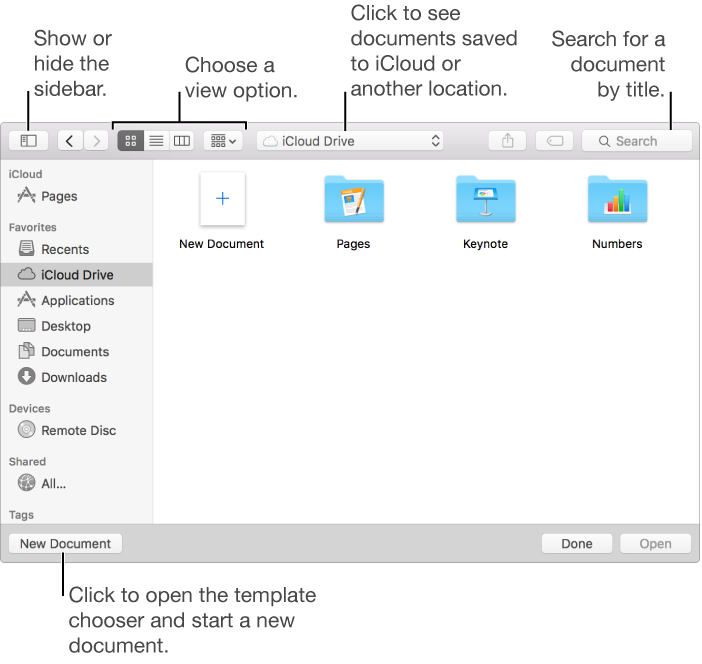
Pages can open documents saved on your Mac, in iCloud, on connected servers, and in other storage providers such as Dropbox. You can also use Pages to open and edit Microsoft Word documents (.doc and .docx).
If you can’t open a Pages document, make sure that you have the latest version of Pages from the Mac App Store. If a document is dimmed and can’t be selected, the document can’t be opened by Pages.
Note: Pages doesn’t open rich text format (RTF) file types. You must save RTF files in another supported file type before opening them in Pages.
Open an existing document in Pages
Do any of the following:
Double-click a Pages document on your Mac.
Drag a document onto the Pages icon in the Dock or in the Applications folder.
In Pages, choose File > Open Recent (from the File menu at the top of your screen). Pages shows up to the last ten documents you opened—either in iCloud or on your Mac.
In Pages, choose File > Open, locate and select the document in the dialog that opens, then click Open.
You can use the sidebar on the left side of the Open dialog to look for documents in folders and in places other than your Mac. Use the buttons at the top to change your view.
If you receive an invitation to collaborate on a document with others, click the link in the invitation to open the document in a web browser. To learn about working with others in a shared document, see Collaborate with others on a document.