
Create a document
Click the Pages icon in the Dock, the Launchpad, or the Applications folder, then do one of the following:
Choose File > New (from the File menu at the top of your screen).
Click the New Document button at the bottom of the Open dialog.
The template chooser opens.
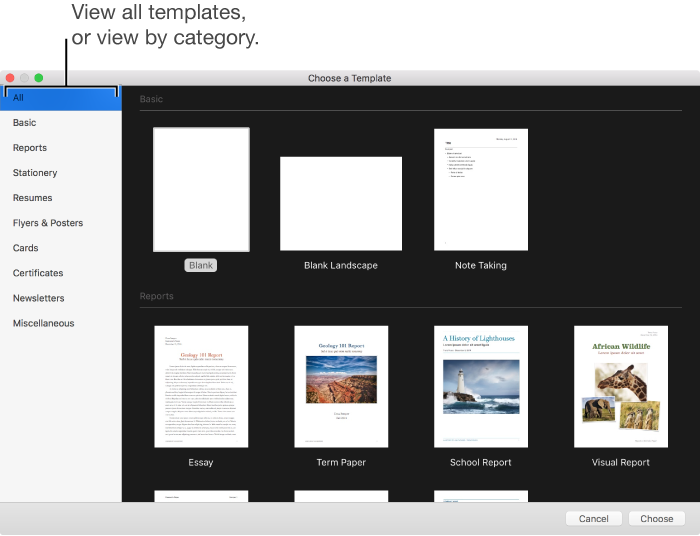
In the template chooser, scroll the templates to find the type of document or envelope you want to create, then double-click the template to open it.
To start with a blank page, choose one of the Blank templates. If you choose a template with placeholder text and graphics, you’ll replace that content with your own.
Do one of the following:
For a blank template: Begin typing. The blinking insertion point is already in position and ready to go.
For a template with placeholder text and images:
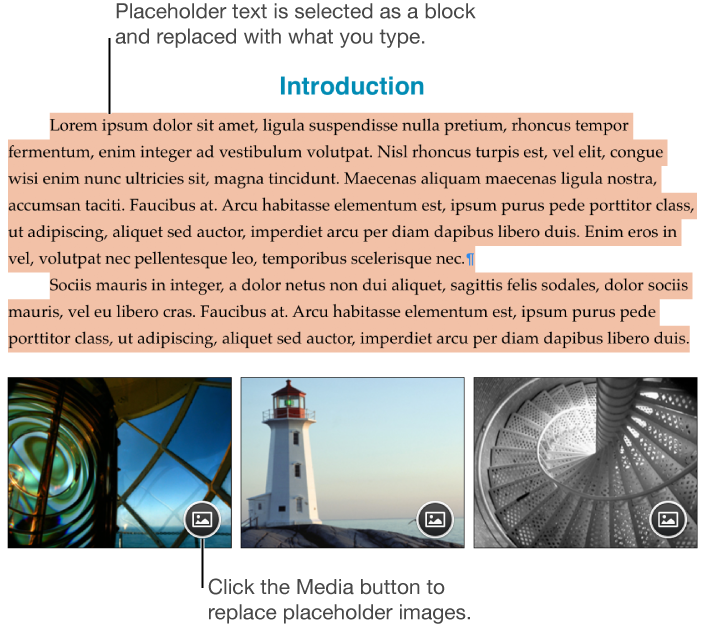
Click placeholder text, then type your own.
Some placeholder text is written in scrambled Latin words. The text you type will appear in the language you use for your computer.
Click
 in the lower-right corner of a placeholder image to replace it with your own, or drag an image from your Mac or a webpage to a placeholder image.
Tip: To undo your recent changes, choose Edit > Undo or Edit > Redo (from the Edit menu at the top of your screen).
Choose File > Save, enter a name, choose a location, then click Save.
If you don’t want to keep a document you started, click Delete in the Save dialog.
If iCloud is set up on your Mac, that's where Pages saves your documents by default.
When you’re finished, click the red close button in the top-left corner of the document to close it.
You can change the name of the document or change where it's saved at any time.
If you want to create a copy of your document in a format other than Pages, you can export a Pages document to another format, such as Word, PDF, or ePub.
 in the toolbar, then see if the first item in the menu is Add Page (it’s a page layout document) or Page Break (it’s a word-processing document).