Collaborate with others on a document

If your document is saved to iCloud Drive, you can collaborate on it with others by sending them a link that opens the document in a supported web browser on a Mac or Windows computer (on supported mobile devices it can be viewed but not edited). As you and your collaborators edit the document on the web, everyone sees the changes in real time. Changes to the document are saved in iCloud, so everyone with access to the document sees the latest version whenever they open it.

Note: If the document is open in Pages on your Mac, it’s periodically updated with the changes made to it on the web. For this reason, it’s best not to edit the document on your Mac while others are editing it on the web because the document may become out of sync.

As the owner of the document, you can change who has permission to view and edit it, send the document link to additional people, or add or remove a password at any time.

Invite others to collaborate

To share a document with collaborators, you first need to upgrade your iCloud account to use iCloud Drive and set up Pages to use iCloud Drive.

Important: The document name is visible in the document link. If the title or content of the document are confidential, be sure to ask recipients not to forward the shared link to anyone else. If you don’t protect the document with a password, anyone who knows the link can open it.

  1. Click Share menu button in the toolbar, then choose Share Link via iCloud.

    If you haven’t already moved your document to iCloud, you can do so in the dialog that appears.

  2. Click the Permissions pop-up menu, then choose what recipients can do:

    • Allow Editing: Recipients can make changes to the document on the web, and print and download the document.

    • View Only: Recipients can view the document on the web, and print and download the document, but they can't make changes to it.

  3. To require a password to open the document, click Add Password, type the password and password hint, then click Set Password.

    To change an existing password, click Change Password, then enter the requested information. Documents can only have one password, so the new password replaces the old one.

    For greater security, don’t send the password along with the shared link. For example, send a separate email that includes only the password.

  4. Click a method for sending the link.

    To send the link using another service like Twitter, you must first set up that account on your Mac (choose Apple menu > System Preferences, then click Internet Accounts). If you want to use a service that’s not listed, you can copy and paste the link into that service.

  5. Click Share Document.

    The Share button in the toolbar changes to Share menu button.

    Important: The document is now shared, and anyone who knows its URL (link)—regardless of whether you’re the one who sent it—can access the document. When others open it, your iCloud account name is visible in the collaborator list.

  6. Enter the requested information, then send or post the message.

    The full link appears in the body of the email, tweet, or post—be sure not to delete or modify the link.

When recipients click the link, the document opens in Pages for iCloud in a web browser. They don’t need an iCloud account to view or edit the document. However, if the recipient taps the link on an iOS or Android device, they can view the document in a browser, but they can’t edit it.

View or edit settings for a document you shared

You can change the permissions for a document you shared, send the document link again, copy and paste the link, invite more collaborators, and add or remove a password at any time.

  1. Click Share menu button in the toolbar.

  2. Click View Share Settings, then do any of the following:

    • Change permissions: Click the Permissions pop-up menu and choose View Only or Allow Editing. If others have the document open on the web when you change this setting, they see an alert. When they dismiss the alert, the new setting takes effect.

    • Add or change the password: Click Add Password or Change Password, then type a password or change the existing password. If you add or change a password, collaborators lose access to the document until you notify them of the new password.

      Important: When you add or change a password, the password applies only to versions created after the password was added or changed. To prevent others from restoring unprotected versions or versions with older passwords, stop sharing the document, add a password to it, then share the document again. See View, copy, and restore an earlier version of a document for more information.

    • Remove the password: Click Change Password, type the password in the Old Password field, then click Remove Password.

    • Send the link again: Click Share button and choose how you want to send the link. Enter the requested information, then send or post the link.
    • Copy and paste the document link: Move the pointer over the link and click Copy Link. Then click where you want the link to appear and choose Edit > Paste (from the Edit menu at the top of your screen). You can paste the link somewhere else—a social networking site, a blog, or in a chat, for example.

    • Stop sharing: Click Stop Sharing. If others have the document open on the web when you turn off sharing, they see an alert. When they dismiss the alert, the document closes. The document retains its link, so if you turn sharing back on, the link becomes active again, and anyone who knows it can access the document.

      If you’re the owner of the shared document and you move the document to another location, the link is broken and collaborators lose access to the document.

Collaborate on a shared document

  1. To open the document, do one of the following:

    • If you’re the owner of the shared document: Go to iCloud.com and sign in to your iCloud account. Click Pages, then double-click the shared document in the document manager.

    • If someone sent you a link to a shared document: Click the link you received.

      The shared document opens in Pages for iCloud, where you can edit the document if the owner allows editing.

      If you have an iOS or Android device, the document opens in a browser, but you can’t edit it, even if the owner has allowed editing.

  2. Edit the document in Pages for iCloud.

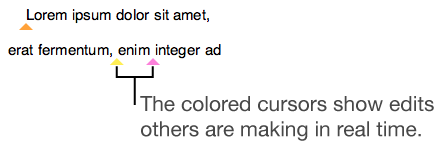
    Changes you and others make to the document appear in real time. Colored cursors and colored selections of text and objects indicate where others are currently editing.

  3. To follow another person’s edits as they make them, click the Share button in the toolbar, then click a name in the list.

    Text with colored triangles where collaborators are editing

    Tip: To hide everyone’s editing activity while you work (including colored cursors and selections), click the View button in the toolbar, then choose Hide Collaborator Activity.

See Pages for iCloud Help for more information about using Pages for iCloud.

See documents shared with you

If you have an iCloud account, you can access previously opened shared documents on iCloud.com.

  1. Sign in to your iCloud account on iCloud.com.

  2. Click Pages to open the document manager.

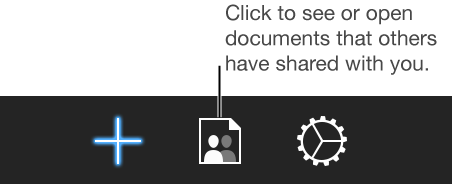
  3. Click the Shared Documents button in the toolbar.

    The Shared Documents icon in the Pages for iWork toolbar

If you delete a shared document from the document manager and later want to see it again, just click the shared link you originally received. As long as the document is still being shared by its owner, the document opens in Pages for iCloud.

See also
Use iCloud with Pages
Send a copy of a document
Move a document