Pages automatically saves a document as you work and gives it a default name, such as Untitled 1. To make it easier to find the document, you can give it your own name and choose where to save it. At any time, you can rename a document or create a duplicate of it with a different name.
To save a copy of a document in a format another format (for example, Microsoft Word), export a copy of the document in that format.
Click anywhere in the document window to make it active, then choose File > Save (from the File menu at the top of your screen).
Enter a name in the Save As field, then enter one or more tags (optional).
To specify where to save the document, click the Where pop-up menu, then choose a location. Click the arrow next to the Save As field to see more locations.
If you don’t see the Where pop-up menu, choose a location in the dialog you see.
To make the document appear in Pages on all of your iOS devices set up with iCloud Drive, save the document in the Pages folder in iCloud Drive. (To see this option, iCloud Drive must be set up on your Mac.) If you choose iCloud Drive, the document is saved in the main level of iCloud Drive, not in the Pages folder.
Tip: You can create a folder from the Save As dialog. Choose a location for the new folder, then click New Folder at the bottom of the Save As dialog. Enter a name for the folder, then click Create. The new folder is selected, so your document will be saved to it.
Click Save.
By default, Pages saves your document as a single file. If your document is very large or has a lot of movie or image files, you may want to save the document as a package file to improve Pages performance.
Click anywhere in the document window to make it active, then choose File > Advanced > Change File Type > Package (from the File menu at the top of your screen).
Some web or email services don’t allow you to upload or attach a package file. You can change a package file back to a single-file format by choosing File > Advanced > Change File Type > Single File.
See this Apple Support article for more information.
Click the document name at the top of the Pages window, then type a new name.
Click anywhere in the document window to make it active, then choose File > Duplicate (from the File menu at the top of your screen).
A new document opens with its name selected at the top of the document.
Type a new name, then press Return.
The copy is saved to the same location as the original.
You can export a Pages document to save a copy of it in another format—Microsoft Word, PDF, plain text (TXT), ePub, or Pages ‘09. Exporting a document is useful when you’re sharing it with others who may use different software from you. Any changes you make to the exported document don’t affect the original.
Note: You can’t export page layout documents in ePub format.
Open the document, then choose File > Export To > [file format] (from the File menu at the top of your screen).
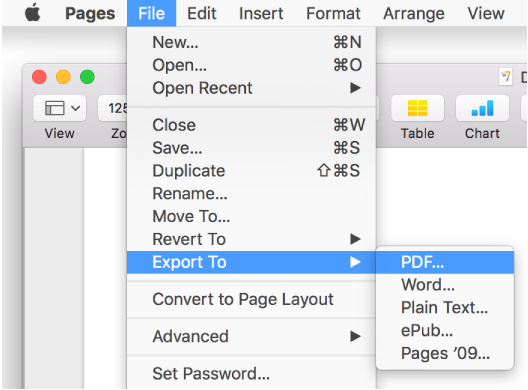
Specify export settings, depending on the file type:
PDF: Choose an image quality. The higher the image quality, the larger the file size of the exported copy.
Word: Click the disclosure triangle next to Advanced Options and choose a format. If you select the “Require password to open” checkbox, enter the requested information.
ePub: Enter the title and author name, then choose a category from the pop-up menu if you want your book to appear in a particular category. Click the disclosure triangle next to Advanced Options to set the language and book cover.
Pages ‘09: Select the “Require password to open” checkbox, then enter the requested information.
Note: The password you set protects only your exported copy, not the original file. To set a password for the original document, see Password-protect a document. If the original file already has a password, it applies to the exported file as well.
Click Next, then type a name for the document.
The file extension (.pdf or .epub, for example) is automatically appended to the document name.
Enter one or more tags (optional).
Click the Where pop-up menu, choose where to save the document, then click Export.
To see more locations, click the arrow button next to Save As.
If you want to send a copy of a document in a different format, you can select the format when you send the document. See Send a copy of a document for more information.
You can also open documents saved as Microsoft Word files.