
You can align multiple objects relative to one another, or move an object using gestures.
You can nudge an object to move it by single-point increments.
Touch and hold the object with one finger, then use another finger to swipe anywhere on the page, in the direction you want the object to move.
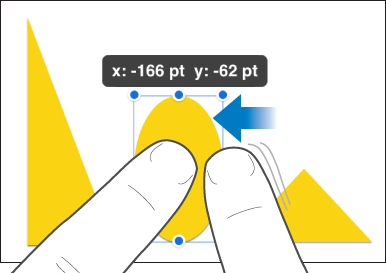
As you swipe, you can see the object’s position changing by single-point increments. Swipe with two, three, four, or five fingers to nudge the object by 10, 20, 30, or 40 points, respectively.
You can constrain an object to move in a straight line as you drag.
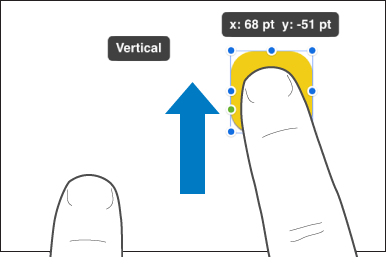
Touch and hold one finger anywhere on the screen while you drag the object across a page using one finger on your other hand.
You can drag an object horizontally, vertically, or diagonally (at a 45-degree angle).
You can align objects in relation to each other so they line up along a vertical or horizontal axis.
Touch and hold one object, then tap the other objects you want to align.
Tap  , then tap Arrange.
Tap an option below Align and Distribute.
The objects align to the object most in the direction you selected. For instance, if you align three objects to the left, the leftmost object doesn’t move, and the other objects align to it.
You can position objects so there is equal spacing between them on a horizontal or vertical axis, or on both axes.
Touch and hold one object, then tap at least two other objects you want to align.
Tap , then tap Arrange.
Tap a button below Align and Distribute.