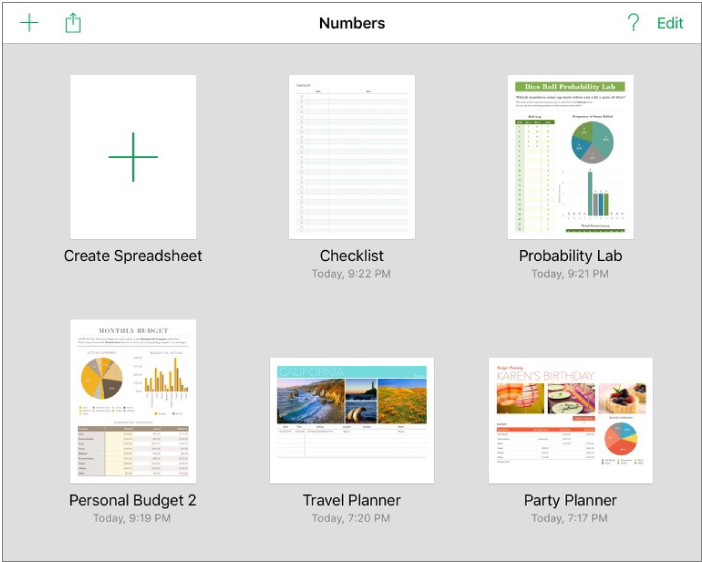
You create new spreadsheets and open existing spreadsheets from the spreadsheet manager. Your existing spreadsheets appear as thumbnail images in the spreadsheet manager.
When you don’t have a spreadsheet open, you’re in the spreadsheet manager, which is the default screen. (To open the spreadsheet manager from a spreadsheet, tap Spreadsheets or  in the top-left corner.)
When you create a spreadsheet, you choose either a blank template to which you can add tables, charts, text, and other objects, or a predesigned template that has placeholder elements including text, tables, and images. These templates, which are designed for purposes like personal finance, business, and education, give you a great starting point, and you can modify them however you like.
In the spreadsheet manager, tap Create Spreadsheet.
Tap a template for your spreadsheet.
Do any of the following to customize your spreadsheet:
Tap a table cell to delete placeholder content and add your own.
Tap  to add other tables, text boxes, shapes, and images.
Arrange the sheet by dragging tables and objects to where you want them.
Your spreadsheet is saved automatically as you work. You can change the name of the spreadsheet or change where it's saved at any time.