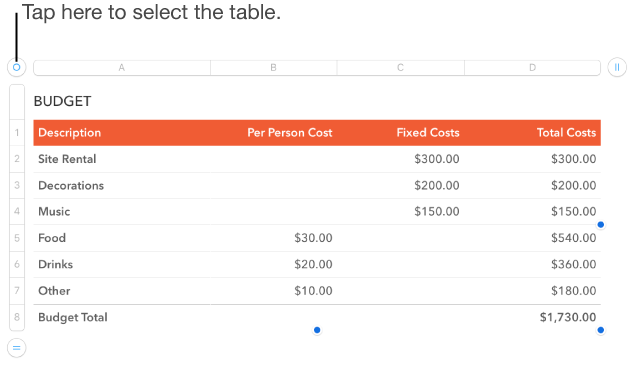

When you add a table, you choose from a number of predesigned styles that match your template. After you add a table, you can customize it however you like. You can add as many tables as you want to a sheet.
Tap  , then tap
  .
.
Swipe right and left to see more style options.
Tap a table style.
To add content to a cell, double-tap the cell, then start typing.
Numbers has several keyboards you can use to enter content like numbers, text, dates, and formulas. For more information, go to Add and edit cell content.
Move to another cell by tapping  or
or  on the keyboard, or by tapping another cell in the table or Next on the keyboard if you’re entering text.
Tap Done to dismiss the keyboard.
To move the table, tap it, then drag  in the top-left corner to move it to where you want it on the sheet.
To change the look of the table or its cells, tap  then use the formatting controls to make changes.
Tap the table, tap in the top-left corner of the table, then tap Delete.
Tap the table, then tap in the top-left corner of the table.
Tap Copy.
Tap once to deselect the table, tap an empty space on the sheet, then tap Paste.