
You can import media files (video clips, audio clips, and still images) into a Motion project one at a time or simultaneously.
Although you can import iTunes and photo files from the Import dialog or Finder, it’s better to add them using the iTunes and Photo categories in the Motion Library. When you add iTunes and photo files via the Library, you can browse for files using the playlist and photo album features. For more information, see Add iTunes and photo files from the Library.
Important: To be properly projected, imported 360° video must be contained within a 360° environment (in the Layers list). For more information, see Create 360° projects and Add 360° video to a project.
Do any of the following:
Choose File > Import (or press Command-I).
In the toolbar, click the Import button.
Control-click an empty area of the Layers list or canvas (in the black area outside the project), then choose Import from the shortcut menu.
In the dialog that appears, navigate to and select one or more media files, Shift-clicking to select contiguous items or Command-clicking to select noncontiguous items.
Do any of the following:
Click Import.
Drag the file or files to the canvas.
Drag the file or files into a group in the Layers list, or into the empty lower area of the Layers list.
If added to a group, the imported files appear as new layers in that group, placed above existing layers in the group. If added to the empty area, a new group is created containing the imported files.
Drag the file or files into a group in the Timeline layers list, or into the empty lower area of the Timeline layers list.
If added to a group, the imported files appear as new layers in that group, placed above existing layers in the group. If added to the empty area, a new group is created containing the imported files.
Drag the file or files into the Timeline.
Note: For more information on adding objects to the Timeline, see Timeline overview.
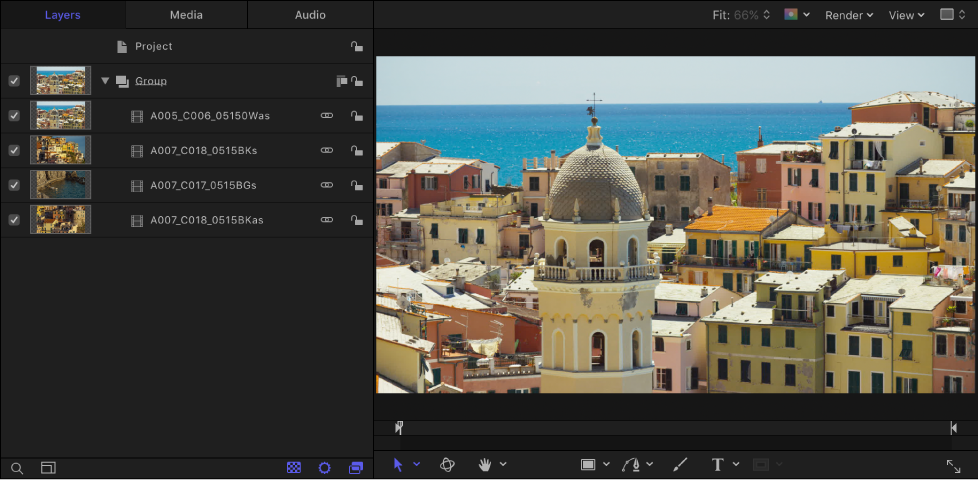
The media files appear in the canvas, and as layers inside the last-selected group in the Layers list.
Navigate through the Finder and select one or more media files, Shift-clicking to select contiguous items or Command-clicking to select noncontiguous items.
Do any of the following:
Drag the file or files from the Finder to a location in the canvas.
Drag the file or files into a group in the Layers list, or into the empty lower area of the Layers list.
If added to a group, the imported files appear as new layers in that group, placed above existing layers in the group. If added to the empty area, a new group is created containing the imported files.
Drag the file or files into a group in the Timeline layers list, or into the empty lower area of the Timeline layers list.
If added to a group, the imported files appear as new layers in that group, placed above existing layers in the group. If added to the empty area, a new group is created containing the imported files.
Drag the file or files into the Timeline.
Note: For more information on adding objects to the Timeline, see Timeline overview.
Sometimes, animated sequences are delivered as a series of sequentially numbered still images. Motion lets you import these sequences as a single object, with each image used as a sequential frame in a movie.
Do any of the following:
Choose File > Import (or press Command-I).
In the toolbar, click the Import button.
Control-click an empty area of the Layers list or canvas (in the black area outside the project), then choose Import from the shortcut menu.
In the dialog that appears, navigate to the image sequence, then select an image in the sequence.
Select the Image Sequence checkbox.
Note: If the Image Sequence checkbox does not appear, click Options in the lower portion of the dialog.
Click Import.
Motion uses each image in the sequence as a frame in a movie clip.
For more information, see About image sequences.
You can also add media files to your project without having them appear in the composition. You do this by importing a file into the Media list, thereby storing media objects you might want to use in the future. When you import this way, the imported media does not appear in the canvas or in the Layers list. However, the media remains available in the Media list.
In the Project pane, click Media to open the Media list.
Do one of the following:
In the toolbar, click Import, then drag media files from the dialog to the Media list.
From the macOS Finder, drag media files to the Media list in Motion.
With the Media list active, choose File > Import (or press Command-I); then, in the dialog, select a file and click Import.
Control-click in the Media list, choose Import Media from the shortcut menu, then add a file from the dialog.
Note: You can also import files directly to the Media pane from any Project pane (Layers list, Media list, or Audio list) by choosing File > Import As > Unused Media, selecting a file to add, then clicking Import.
The resulting media objects are added to the Media list but don’t appear in the canvas, Layers list, or Timeline.
You can also create a new project for files at the time of import. To do so, use the Import as Project command.
Choose File > Import As > Project or press Shift-Command-I.
In the dialog that appears, navigate to and select the one or more media files, Shift-clicking to select contiguous items or Command-clicking to select noncontiguous items.
If needed, set the frame rate, aspect ratio, field order, and audio mix settings.
If you’re selecting items from an image sequence, select the Image Sequence checkbox to have Motion use each image as a frame in a movie clip.
Click Import as Project.
The media files appear in a new Motion project.