
Motion provides many controls for navigating the Timeline. You can drag the playhead to “scrub” through your project as quickly or slowly as you want, or immediately jump to a specific frame. Additionally, you can jump to object boundaries, markers, and other important indicators in the Timeline.
Many navigation tasks are also accessible in the timing toolbar.
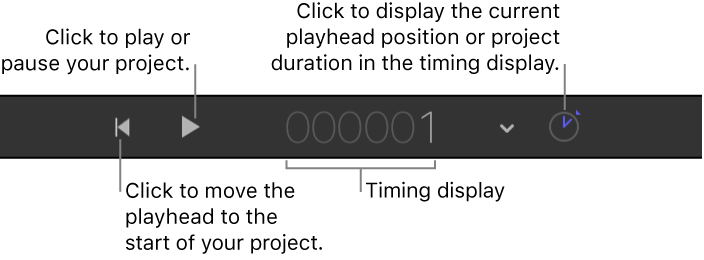
Note: The timing display can be set to show frames or timecode. To set the timing display duration to frames, Click the down arrow on the right side of the timing display, then choose Show Frames from the pop-up menu. For more information, see Switch between display of frame numbers and timecode.
In addition to moving to new positions in time, you can navigate directly to objects in the Timeline, such as objects, markers, and keyframes.
Do one of the following:
In the timing toolbar, click the Play button.
Press the Space bar.
For more options, such as advancing frame-by-frame or starting playback from the beginning of the project, see Play back a project.
Do one of the following:
Double-click the current frame number in the timing display, enter a new frame number, then press Return.
Drag left or right over the current frame number in the timing display to rewind or advance.
Drag the playhead in the Timeline ruler to the frame you want.
Click the Timeline ruler at the frame number where you want to move the playhead.
With the canvas or Project pane active, type a new frame number, then press Return to jump to that frame.
With the Timeline active (and no objects selected), type a new frame number, then press Return to jump to that frame.
To make it easier to find specific frames in your project, you can step through the Timeline frame by frame, rather than skimming it.
Do any of the following:
Move forward a specific number of frames: Type a plus sign (+), then type the number of frames to move forward.
Move backward a specific number of frames: Type a minus sign (–), then type the number of frames to move backward.
Move forward or backward one frame at a time: Press the Left Arrow key (or the Page Up key) to move backward or the Right Arrow key (or the Page Down key) to move forward.
You can also choose Mark > Go to > Previous Frame or Mark > Go to > Next Frame.
Move forward or backward ten frames at a time: Choose Mark > Go to > 10 Frames Back (or press Shift-Left Arrow) or Mark > Go to > 10 Frames Forward (or press Shift-Right Arrow).
Make sure the timing display is set to show timecode.
If the timing display is showing frames, click the down arrow, then choose Show Timecode from the pop-up menu.
Double-click in the timing display.
Do any of the following:
Move forward in seconds: Enter a plus sign (+), enter the number of seconds to move forward, then enter a period. For example, to move 2 seconds ahead, enter “+2.” (with a period after the number), then press Return.
Move forward in minutes: Enter a plus sign (+), enter the number of seconds to move forward, then enter two periods after the number. (To move ahead in hours, enter three periods after the number.)
Move backward in seconds: Enter a minus sign (–), enter the number of seconds to move backward, then enter a period. For example, to move 2 seconds backward, enter “–2.” (with a period after the number), then press Return.
Move backward in minutes: Enter a minus sign (–), enter the number of seconds to move backward, then enter two periods after the number. (To move backward in hours, enter three periods after the number.)
To move the playhead quickly from point to point in the Timeline, do one of the following:
Jump to the beginning of the project: Click the “Go to start of project” button in the transport controls (under the canvas), or choose Mark > Go to > Project Start, or press Home.
Jump to the end of the project: Click the “Go to end of project” button in the transport controls, or choose Mark > Go to > Project End, or press End.
Jump to the next keyframe: With an animated object selected, choose Mark > Go to > Next Keyframe, or press Shift-K.
Jump to the previous keyframe: With the animated object selected, choose Mark > Go to > Previous Keyframe.
Select the object to navigate to.
Do one of the following:
Choose Mark > Go to > Selection In Point or Mark > Go to > Selection Out Point.
Press Shift-I (for the In point) or Shift-O (for the Out point).