
You can play a project from the beginning, play it from a certain point, play a selection, and loop playback. You can also play video in full-screen view.
Do any of the following:
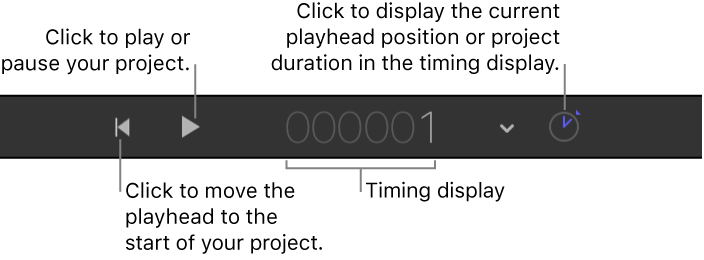
Start project playback: In the timing toolbar, click the Play button (or press the Space bar). After you click Play, this control becomes a Pause button.
Stop project playback: In the timing toolbar, click the Pause button (or press the Space bar). After you click Pause, this control becomes a Play button.
Go to the start of a project: In the timing toolbar, click the Go To Start button (or press the Home key).
Go to the end of a project: Press the End key.
Play a project from the beginning: Pressing and holding the Option key, click the Play button in the timing toolbar. (You can also press Shift-Space bar.)
Play a selection: Select the layer you want to play, then choose Mark > Play Selection (or press /).
Play or mute audio: Click the Mute button, located on the left side of the timing toolbar.
Move the playhead forward by one frame: Press the Right Arrow key or the Page Down key.
Move the playhead backward by one frame: Press the Left Arrow key or the Page Up key.
In the Timeline or mini-Timeline, do one of the following:

Drag the playhead to a new position.
Click on either side of the playhead.
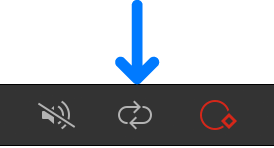
The Loop button controls whether playback loops indefinitely, or whether playback stops at the end of the play range.
Do one of the following:
In the timing toolbar, click the Loop button.
Choose Mark > Loop Playback (or press Shift-L).
For more information on setting a play range, see Define the play range.
To control whether Motion displays media at full resolution in the canvas, and whether video playback is optimized for quality or performance, choose the corresponding options from the View pop-up menu in the upper-right corner of the Motion window. For more information, see Custom canvas view options.