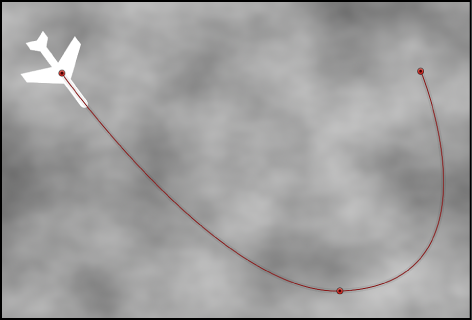

The Motion Path behavior lets you create a 2D or 3D motion path for an object to follow. When you apply this behavior, the motion path defaults to an open spline: a straight line defined by two points at the beginning and end of the path. You can also choose from preset path shapes, such as a closed spline, loop, rectangle, or wave, or use a shape to define a path. A shape used as the source for a motion path can be animated.
For more information on customizing the Motion Path behavior, see Work with the Motion Path behavior.
The first point on the path is the position of the object in the Canvas at the first frame of the behavior. Option-click anywhere on the path to add Bezier points, which allow you to reshape the motion path by creating curves.
When you play the project, the object moves along the assigned path. (To show or hide the motion path, choose Show Overlays from the View pop-up menu above the Canvas.) The speed at which the target object travels is defined by the duration of the behavior. Speed is also affected by the Speed parameter, which lets you modify the object’s velocity—adding acceleration and deceleration at the beginning and end of the behavior, for example. You can also create a custom preset defining how the object travels along the path.
Note: When you switch between the Path Shape options, the Inspector and the HUD display parameters specific to the selected option.
The Motion Path behavior is an easy way to create predictable motion without using the Keyframe Editor. It’s also a great way to create reusable motion paths that you can save in the Library for future use.
When the Motion Path behavior is added to an object, the Adjust Item tool is selected, allowing you to modify the default path in the Canvas by adding points and using the Bezier (or B-Spline) controls attached to each point to adjust each curve. You can also move and resize preset motion path shapes, such as a rectangle or wave, in the Canvas.
Adjust this behavior using the controls in the Behaviors Inspector:
Path Shape: A pop-up menu that defines the shape of the path on which the object travels. Choose one of the following path shapes:
Open Spline: The default shape, a straight path defined by two points at the beginning and end of the path. You can choose to work with Bezier or B-Spline control points. Option-click (or double-click) anywhere on the path to add points.
Note: You cannot add points to a motion path when Circle or Rectangle are selected from the Path Shape pop-up menu. To change the shape of a path when Geometry is selected from the Path Shape pop-up menu, edit the source shape.
Closed Spline: A closed path with the last point in the same location as the first point. You can choose to work with Bezier or B-Spline control points. Option-click (or double-click) anywhere on the path to add points.
Circle: A simplified version of Closed Spline, in which the X radius or Y radius can be adjusted to create a circle or an ellipse. Use the outer control points to resize the circle (or rectangle) motion path’s shape.
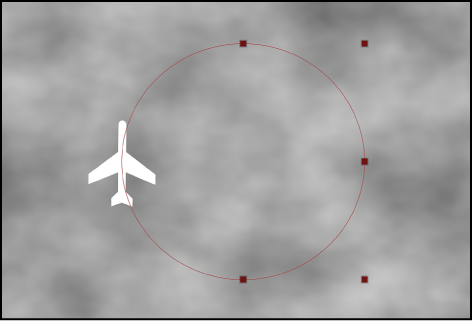
Rectangle: A closed path in which the width and the height can be adjusted to create a square or a rectangle.
Wave: A wavy path (a sine wave) defined by two points, one at the beginning and one at the end of the path, and controlled by the End Point, Amplitude, Frequency, Phase, and Damping parameters.
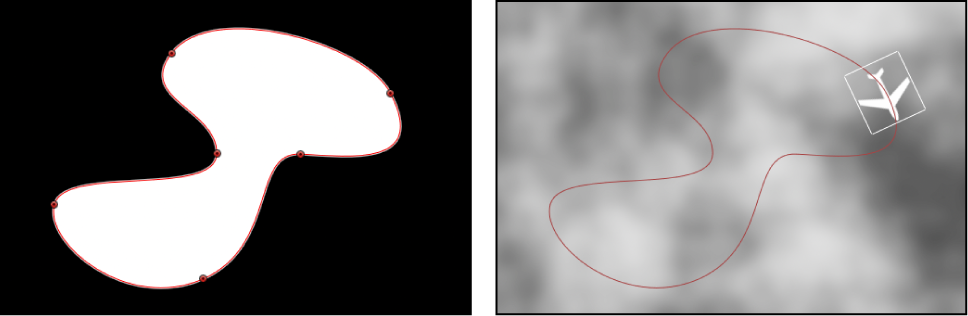
Geometry: A path based on a shape or mask. The object travels along the edge of the shape or mask. In the following figure, the outline of the shape on the left is used as the motion path in the composition shown on the right.
Note: The Path Shape parameters work similarly to text on a path. For more information about working with text on a path, see Create and modify text on a path.
Shape Type: A pop-up menu (available when Path Shape is set to Open Spline or Closed Spline) that sets how the path is manipulated, via Bezier or B-Spline control points.
Bezier: Lets you manipulate the path manually by dragging Bezier handles.
Note: For more information about creating and adjusting Bezier curves, see Edit Bezier control points.
B-Spline: Lets you manipulate the path by dragging B-Spline control points. The points themselves do not lie on the surface of the shape. Instead, each B-Spline control point is offset from the shape’s surface, “magnetically” pulling that section of the shape toward itself to create a curve. B-Splines are extremely smooth—by default, there are no sharp angles in B-Spline shapes, although you can create sharper curves, if necessary.
Note: For more information about working with B-Spline curves, see Edit B-Spline control points.
Radius: A slider (available when Circle is the defined path shape) that sets the size of the circular path. Click the disclosure triangle to adjust the X radius and Y radius independently.
Note: When the Motion Path behavior is selected, you can also drag the onscreen control points to resize the circle. Press Shift while dragging to resize the X and Y radii uniformly.
Size: A slider (available when Rectangle is the defined path shape) that modifies the size of the rectangular path. Click the disclosure triangle to adjust the X scale and Y scale independently.
Note: When the Motion Path behavior is selected, you can also drag the onscreen control points to resize the rectangle. Press Shift while dragging to resize the X and Y scales uniformly.
Offset: A slider (available when Circle, Rectangle, or Geometry is the defined path shape) that sets where the object starts moving on the path.
End Point: Value sliders (available when Wave is the defined path shape) that sets the location of two default points on the wave’s path. The end points can also be adjusted using the wave’s onscreen controls (active by default when the Motion Path behavior is selected). Moving the left end point moves the entire path; moving the right end point lengthens, shortens, or angles the path.
Amplitude: A slider (available when Wave is the defined path shape) that defines half the distance from the highest point to the lowest point in the wave. Higher values result in more extreme waves.
Frequency: A slider (available when Wave is the defined path shape) that sets the number of waves. Higher values result in more waves.
Phase: A dial (available when Wave is the defined path shape) that defines the degree of the offset of waves from the start and end points of the path. When Phase is set to 0 degrees (default), the wave begins and ends at half the distance from the highest point to the lowest point in the wave. When Phase is set to 90 degrees, the wave begins and ends at the highest point in the wave. When set to –90 degrees, the wave begins at the lowest point in the wave. When set to 180 degrees, the waves are the same as 0 degrees, but inverted.
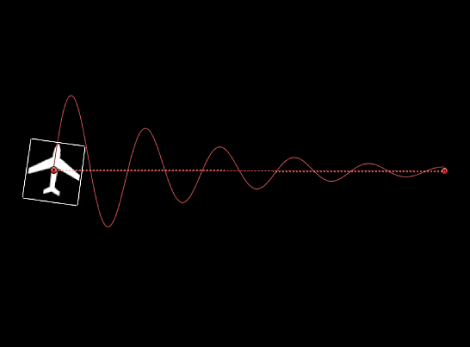
Damping: A slider (available when Wave is the defined path shape) that progressively diminishes the oscillation of the wave. Positive values diminish the wave forward (from left to right); negative values diminish the wave backward (from right to left). The following illustration shows positive damping applied to the wave motion path.
Attach to Shape: A checkbox (available when Geometry is the defined path shape) that, when selected, forces the motion path to follow the source shape at its original location. When disabled, the motion path can exist in a location other than its source shape.
Note: When Attach to Shape is selected, you cannot move the object to another location.
Tip: To align the rotation of an object to match all changes made to its position along an animation path, apply the Snap Alignment to Motion behavior. For more information, see Snap Alignment to Motion.
Shape Source: An object well (available when Geometry is the defined path shape) that specifies the object (a shape or mask) used as the motion path source. Choose an available shape from the adjacent To pop-up menu, or drag a shape from the Layers list into the object well.
Direction: A pop-up menu that defines the object’s direction along the path. There are two options:
Forward: The object moves in a forward direction along the path (from the start point to the end point, depending upon the Offset parameter).
Reverse: The object moves in a backward direction along the path (from the end point to the start point, depending upon the Offset parameter).
Note: The Offset parameter is available when Path Shape is set to Circle or Rectangle.
Speed: A pop-up menu that defines the object’s velocity from the first to the last point in the motion path. There are eight choices:
Constant: The object moves at a steady speed from the first to the last point on the motion path.
Ease In: The object starts at a slow speed, then reaches and maintains a steady speed through the last point on the motion path.
Ease Out: The object starts at a steady speed, then gradually decelerates to a stop at the last point of the motion path.
Ease Both: The object slowly accelerates from the first point on the motion path, then gradually decelerates to a stop at the last point of the motion path.
Accelerate: The object moves along the path with increasing speed.
Decelerate: The object moves along the path with decreasing speed.
Natural: The speed at which the object moves over the path is determined by the shape of the path. For example, if the path is a U-shape curve, the object moves faster as it moves toward the low point of the U and slower as it moves up the edges.
Custom: Object speed is defined by keyframes for the object’s speed from 0 to 100 percent. In other words, you determine the position of the object along the path in time.
Custom Speed: A slider (available when Speed is set to Custom) that modifies the Custom Speed velocity curve in the Keyframe Editor. For example, you can keyframe custom values to make an object travel forward to a specific percentage of the path, then backward, then forward, and so on before reaching the end of the animation.
Apply Speed: A pop-up menu that determines how the Speed parameter (velocity) is applied over the duration of the behavior. (Loops must be set to a value greater than 1 for the Apply Speed parameter to have any effect.) There are two choices:
Once Per Loop: The velocity, as defined by the Speed parameter, is applied to each cycle. For example, if Loops is set to 3 and Speed is set to Accelerate, the object accelerates each time it travels over the path. The speed is applied to the entire duration, ignoring the Loops setting.
Over Entire Duration: The velocity, as defined by the Speed parameter, is applied one time over the duration of the behavior. For example, if Loops is set to 3 and Speed is set to Accelerate, the object accelerates the first time it travels over the path, but not the second and third time.
Loops: A slider that sets the number of times the object travels the motion path over the duration of the behavior. For an object to travel its path more than once, or to “ping-pong,” Loops must be set to a value greater than 1.
End Condition: A pop-up menu that defines the behavior of the object after it reaches the end of its motion path. There are two options:
Repeat: The object travels the motion path the number of times defined by the Loop parameter.
Ping-Pong: The object moves along the path until it reaches the last point on the path, then moves backward to the first point on the path. The number of “ping-pongs” is defined by the Loops parameter.
Control Points: Value sliders (available when the path shape is Open Spline or Closed Spline) that set the X, Y, and Z coordinates of the motion path control points. (Click the disclosure triangle to display the X, Y, and Z value sliders.)
Note: You cannot apply Parameter behaviors to the control points.