Create and modify text on a path

The Path layout method lets you place text on a baseline path that you can warp to create curving or angular trails of text. After you create text on a path, you can modify or extend the path, add or remove control points, or animate text on the path. See Animate text on a path.

You can always edit text on a path, changing text characters or fonts, tracking, and kerning, as well as Appearance pane settings.

Note: The Text tool must be selected to view and edit the text path.

Create text on a path

  1. Select the text in the Canvas, Layers list, or Timeline.

  2. In the Layout pane of the Text Inspector, click the Layout Method pop-up menu, then choose Path.

    The Path Options controls become available, near the bottom of the Layout pane.

  3. Select the Text tool in the toolbar (or press T) and click the text in the Canvas.
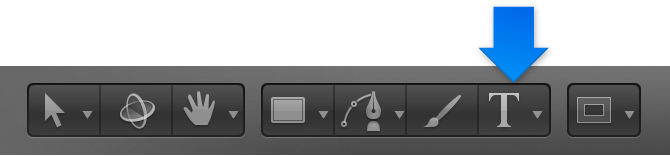
    Text tool in toolbar

    Step 3 is important—the Text tool must be selected to view or edit the text path.

    The path appears below the text. The default path shape is a straight line (an open spline) and contains three control points.

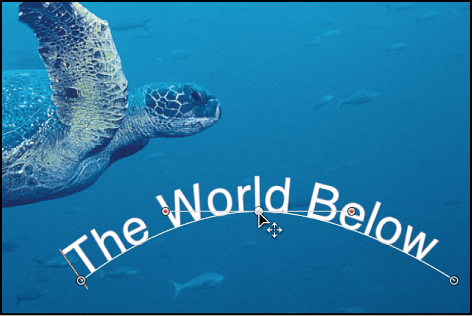
    Canvas showing text object with path visible

Adjust the text path in the Canvas

Extend a text path in the Canvas

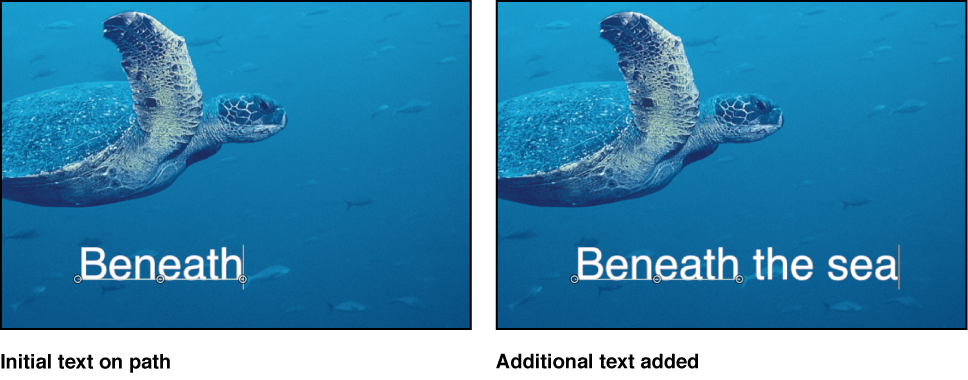
When you add additional text characters to text on a path, you may need to extend the default path, by dragging it in the Canvas.

Canvas showing text on a path being edited

Add, modify, or remove control points from a text path in the Canvas

Do any of the following:

See also
Path Options controls in the Layout pane