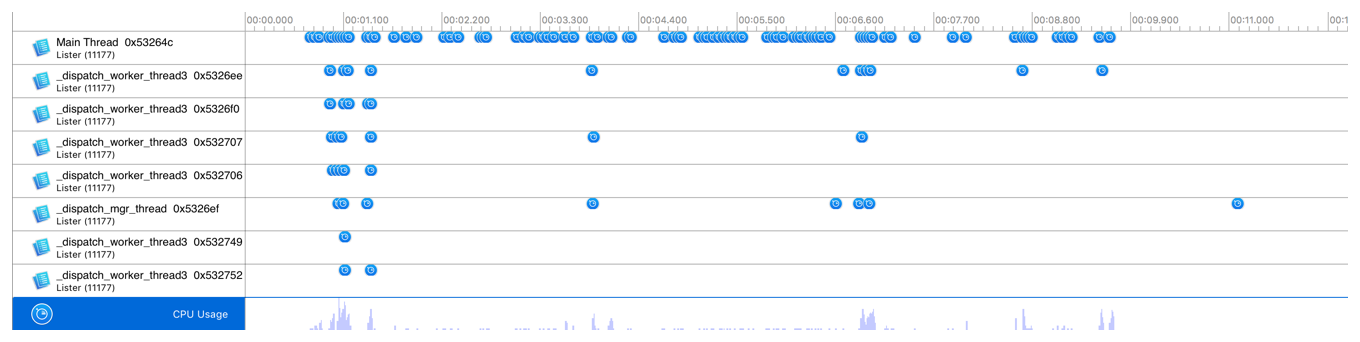
The timeline pane displays a graphical summary of the data recorded for a given trace. In this pane, each instrument, CPU core, or thread has its own “track,” which provides a graphical chart of the data collected.
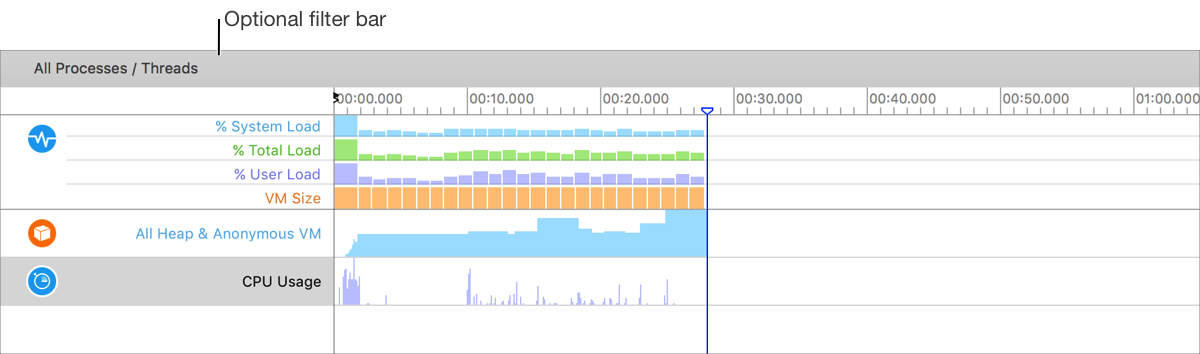
Although this pane’s information is read-only, you can scroll through data, select specific areas for closer examination, and insert flags to highlight points of interest. You can change how graphical information is displayed here by adjusting the zoom level or by changing the display settings of individual instruments using the display configuration popover. An optional filter bar provides controls for filtering the data displayed by an instrument. For example, the Sampler instrument can filter the data by thread.
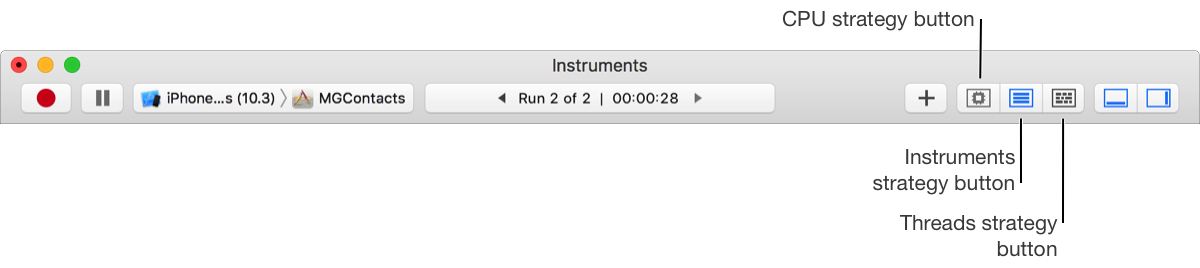
Strategy buttons
Click the strategy buttons in the toolbar to display instrument, CPU core, or thread data.
Instruments strategy view. Click the Instruments strategy button ( ) to show a list of all the individual instruments contained within your trace document, along with their collected data. You can drag new instruments to the list from the Library palette. If you select an instrument in the list, you can delete it or configure it in the inspector pane. The instruments list is visible by default when you create a trace document.

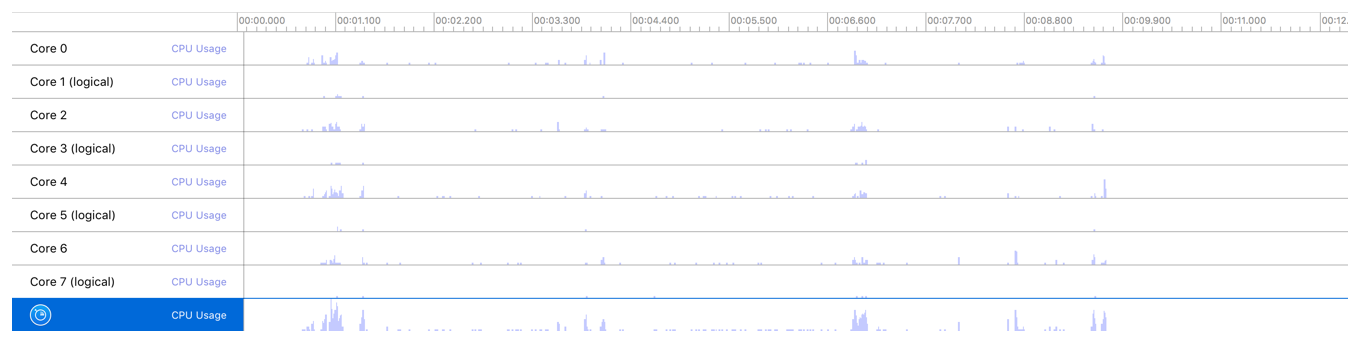
CPU strategy view. If your trace document contains instruments that record CPU-related data, click the CPU strategy button ( ) to show a list of CPU cores and their usage over time.
Threads strategy view. If your trace document contains instruments that record thread-related data, click the Threads strategy button ( )to view a list of threads and their utilization.