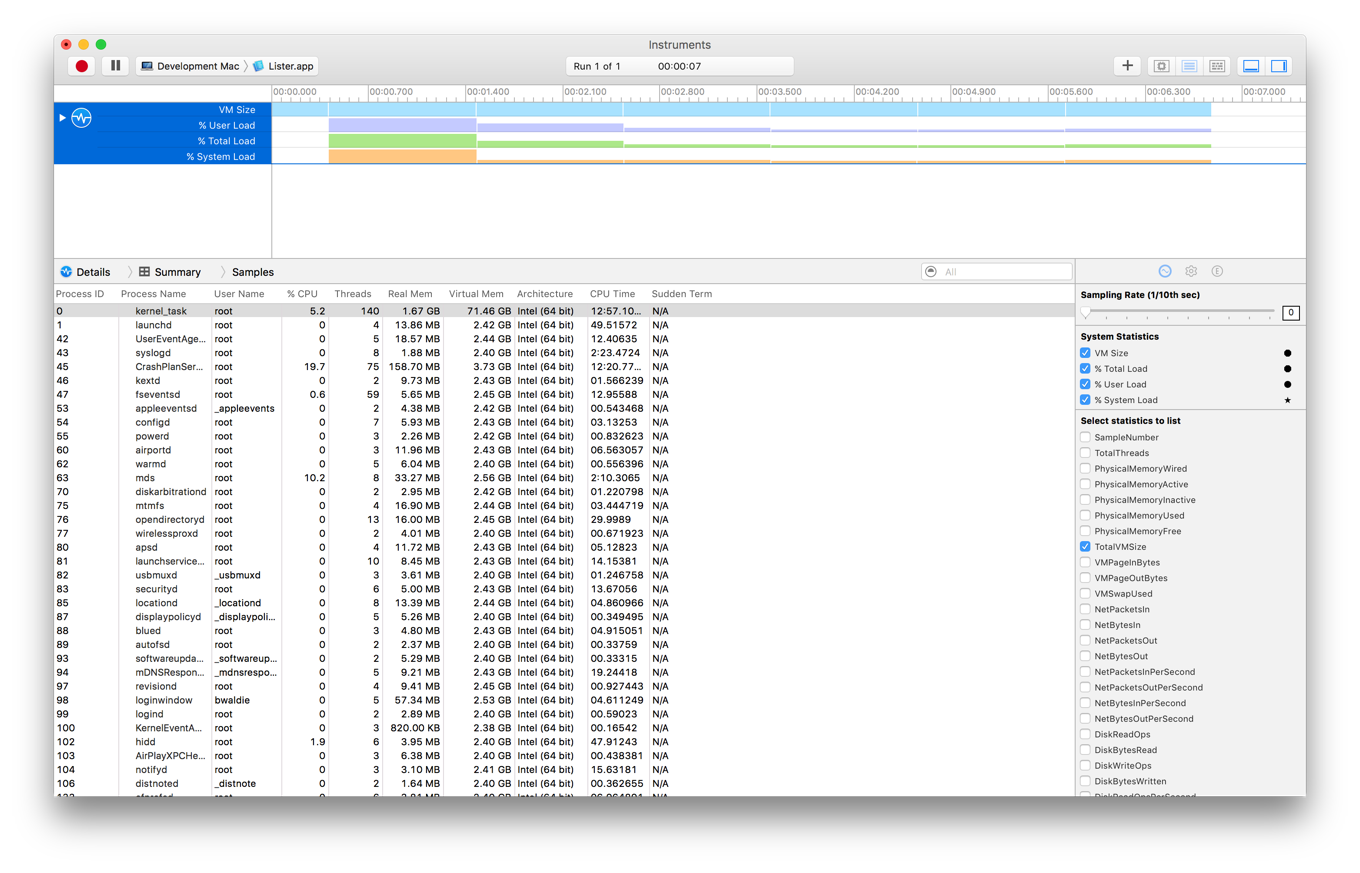
If you need to profile your app with the same template regularly, you can set up your Xcode project to automatically use it whenever you initiate profiling.
Launch Xcode, and open your app project.
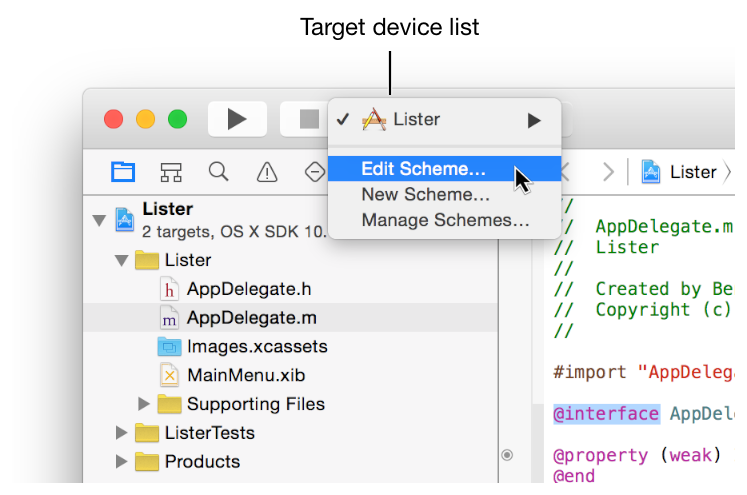
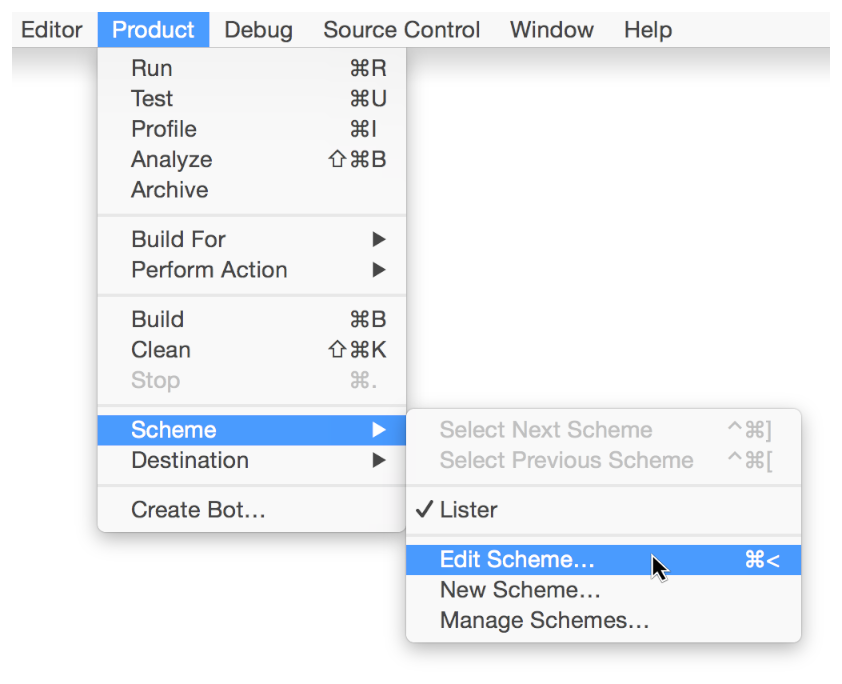
Open the scheme editor dialog by doing one of the following:
Select Edit Scheme from the target device list in the Xcode main window toolbar.
Choose Product > Scheme > Edit Scheme, or press Command–Less Than (<).
Click Profile in the sidebar of the scheme editor dialog.
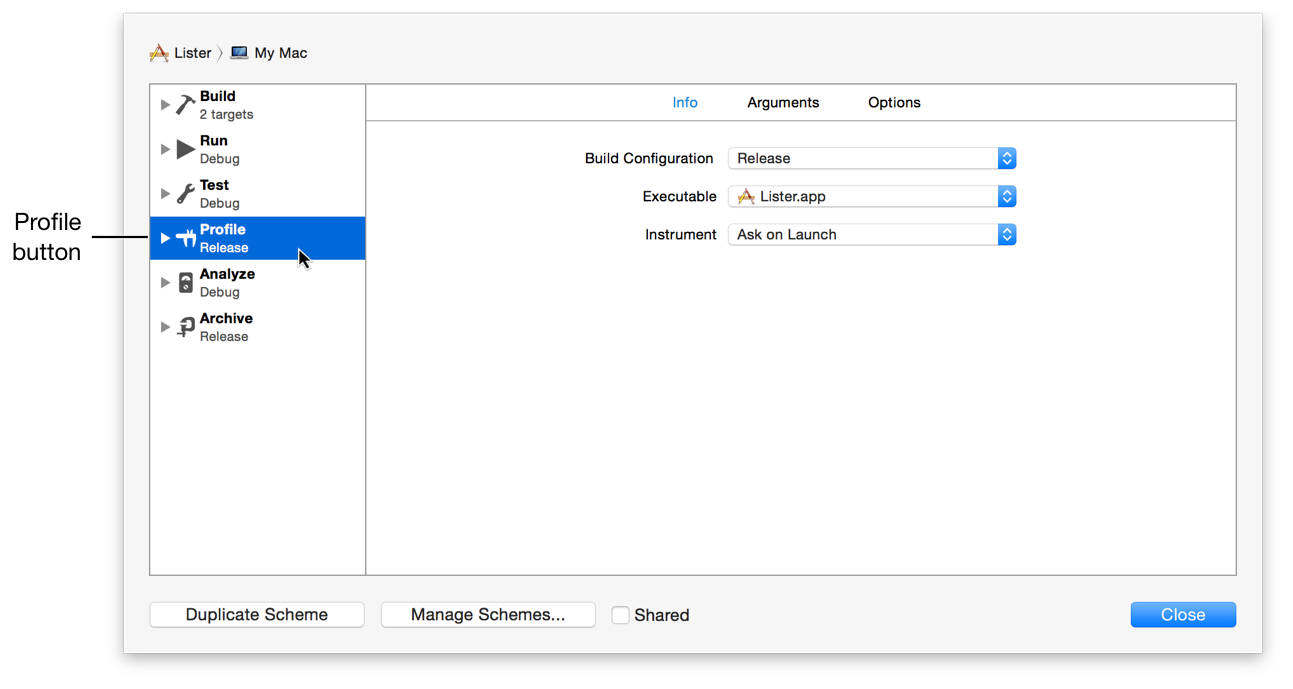
From the Instrument pop-up menu, choose the desired profiling template.
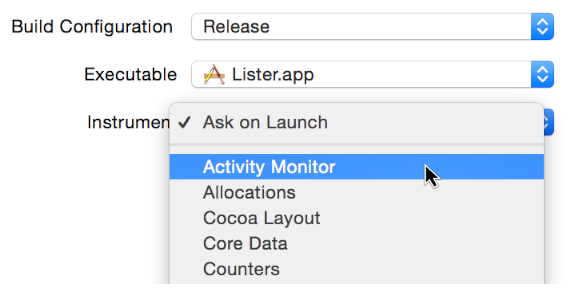
Click Close.
Initiate profiling. See Profile your app from the Xcode Build and Product menus.
Xcode builds your project, Instruments launches, and it begins profiling your app with the template you configured in the scheme editor.