
Instruments allows you to collect data from an iOS device wirelessly.
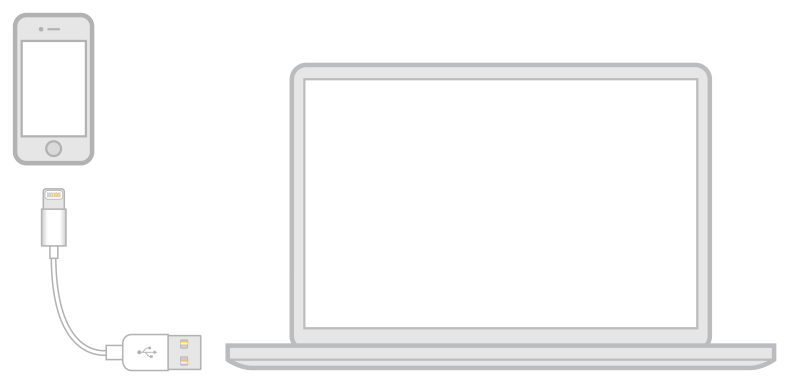
Make sure your iOS device is connected to your development Mac by a USB or Lightning cable.
Press the Option key, and click the target device list.
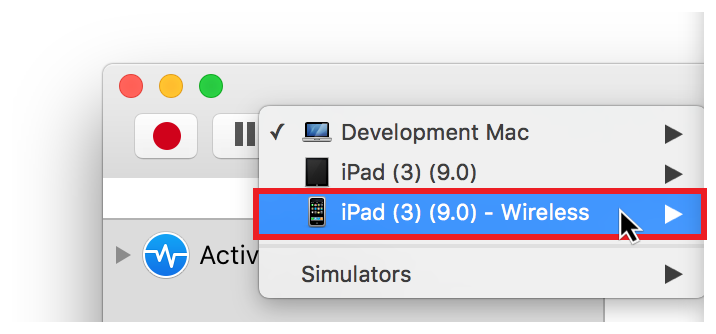
Select your mobile device to enable wireless profiling for it.

Click the target device list again to open it, select the wireless version of your device, and select a process.
Disconnect the device from the USB or Lightning cable.
You should now be able to profile the process wirelessly on your device.
Wireless profiling is especially useful when testing the following:
Accelerometers. Move the device in all directions without its being tethered.
Accessories. Plug your USB accessory into the free slot and test it.
While profiling a device wirelessly, powering off the device causes data collection to stop. You must reconnect the device to your computer to resume data collection.
Important: Your device must be provisioned for development before Instruments can collect data from it. Bonjour and multicast must also be enabled on your wireless network access point. For information on these services, see Bonjour Service Overview. Both the device and the recording Mac must be on the same wireless network and subnet.