
Use the Symbols pane in the preferences window settings to configure global search paths for symbols in Instruments.
Choose Instruments > Preferences, and click Symbols.
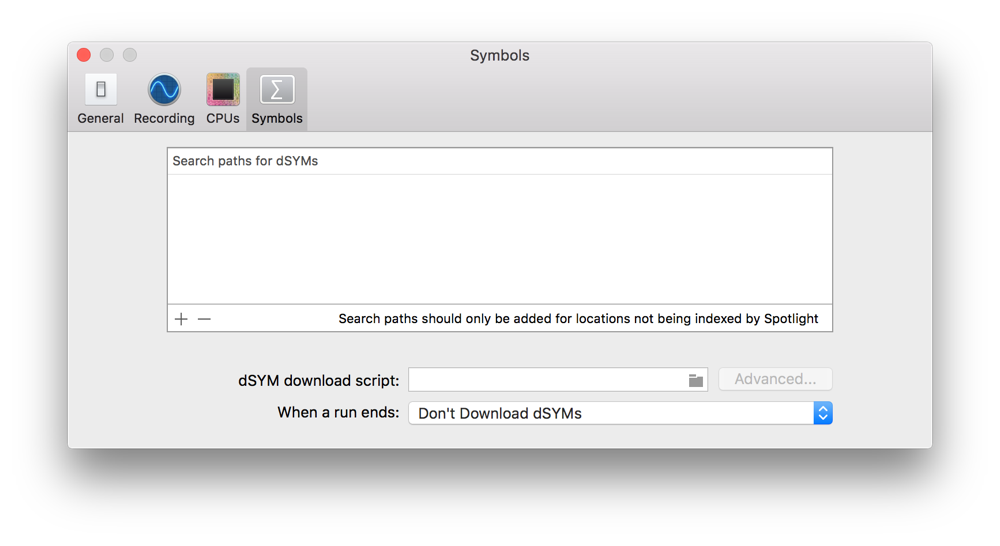
You can configure the following options:
Option | Description | ||||||||||
|---|---|---|---|---|---|---|---|---|---|---|---|
+ | Adds a search location. Opens the Open Directory dialog. Click the Add button (+) to open the Open Directory dialog and then navigate to the desired directory and click Open. Directories indexed by Spotlight are already searched, so you only need to add search paths for directories that aren’t indexed. | ||||||||||
- | Removes a selected search location. Select a path, and click the Delete button (-) to remove the path. | ||||||||||
dSYM download script | Provides the option of running a custom script to locate and access the necessary dSYM files. This option is provided for use by large developers with distributed code databases; it is not needed by the majority of developers. | ||||||||||
When a run ends | Enabled only if a dSYM download script is specified. Configures how the download script is automatically used after a recording has finished. Options include:
| ||||||||||