
Every object in a book is either inline, floating, or anchored. When you add an object to a page, it’s anchored or floating by default. However, you can add objects as inline items instead. Also, if you’re using a landscape or portrait template, you can change an object from one type to another after you add it. (You can’t change objects in an EPUB template from one type to another.)
You can add objects (such as widgets, tables, shapes, and pictures) to your book.
Do any of the following:
Click a button in the toolbar (for example, Shapes  , Table
  , or Widgets
  ) and choose an option from the pop-up menu.
Drag a media file (such as an image) to a book page from the Media Browser (click the Media button  in the toolbar), the Finder, or another app.
Choose Insert > Choose and navigate to an image file on your computer.
Note: You can add any object available in iBooks Author to a landscape or portrait template, and to the title page and table of contents in an EPUB template. In the body pages of an EPUB template, you can add tables, gallery widgets, media widgets, popover widgets, and HTML widgets.
In a landscape or portrait template, you can change an object from one kind to another. (You can’t change an object’s type in an EPUB template.)
Select the object.
Do one of the following:
In the format bar: Click Inline, Floating, or Anchored.
If the format bar isn’t visible, choose View > Show Format Bar.
In the Wrap inspector: Click one of the Object Placement buttons.
If the Wrap inspector isn’t open, click the Inspector button  in the toolbar and click the Wrap inspector button
  .
.
If the controls for changing the object type are dimmed, it might be because you’re in scrolling view. Click the Scroll button  in the toolbar to switch back to paginated view. Or try adding a title, label, or caption to the object and then converting it.
You can add an inline object to a specific location in the book’s text, or inside another object.
Select the object and choose Edit > Copy or Edit > Cut.
Place the insertion point where you want the object to appear, and choose Edit > Paste.
You can place an anchored or inline object anywhere on a page with text on it. An anchored object has a marker  that indicates the text it’s associated with.
Reposition an anchored object: Drag the object or its marker to the text you want to associate the object with.
When the object’s associated text moves to another page (because of changing content), the object moves to the same position on the new page.
Important: If you can’t move an anchored object in a landscape template, you might be in scrolling view. Click the Scroll button in the toolbar to switch to paginated view.
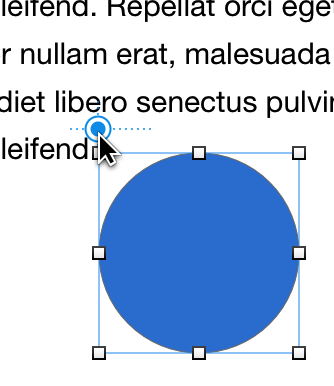
Reposition an inline object: Drag the object.
If you can’t add an item, it might not be a supported file type.