To allow readers to switch to scrolling view in a book created with a landscape template, click the Inspector button  in the toolbar, click the Document inspector button
  at the top of the inspector, then make sure “Disable scrolling view” isn’t selected.
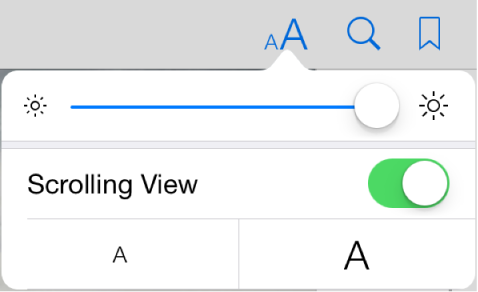
To switch to or from scrolling view in the completed book, readers tap or click the Fonts button in the top-right corner of the Apple Books window, then tap or click Scrolling View.
To switch to or from scrolling view while working on a book in a landscape template, click the Scroll button  in the toolbar. (EPUB templates always appear in scrolling view as you work.)
Note: In books created with a portrait template, the view is always paginated—you can’t scroll through the content.