
Smart Controls let you control the sound of the selected track using a set of onscreen controls. Smart Controls can control both software instruments (on software instrument tracks) and effects (on audio, software instrument, and Drummer tracks).
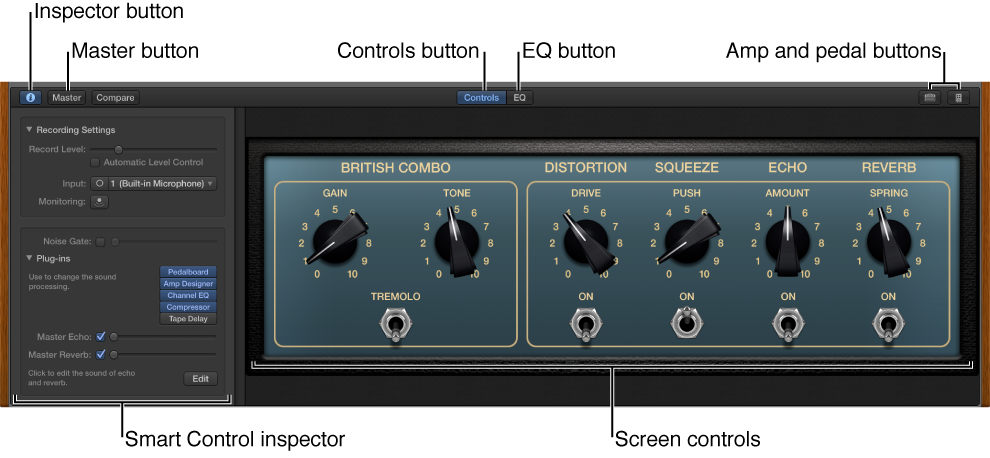
Each Smart Control has a set of screen controls. Adjusting a single screen control can change one or more aspects of the sound. Screen controls are labeled to help you understand which aspect of the sound each one affects.
Smart Controls typically include EQ or tone controls, reverb and other effect controls, and controls specific to the type of track or instrument. For example, the Smart Control for a synthesizer might include screen controls for choosing the waveform and adjusting the resonance and filter cutoff, while one for a string instrument might include controls for changing the articulation.
When you record a software instrument, any movements of screen controls are also recorded and can be edited in the Piano Roll Editor. For more information, see Edit controller information with MIDI Draw.
To work with Smart Controls, you open the Smart Controls pane.
With devices equipped with a Touch Bar, you can use the Touch Bar to adjust screen controls on the selected track.
Select a track, then click the Smart Controls button  in the control bar.
Tap the Mode button on the left side of the Touch Bar, then tap the Smart Controls button .
Tap the screen control name, then drag the slider left or right to adjust the screen control setting.
For audio tracks, you can set the recording level and input source, and open the Amp Designer, Bass Amp Designer, and Pedalboard plug-ins in the Smart Controls pane. For software instrument tracks, you can set keyboard sensitivity and use the Arpeggiator. For both kinds of tracks, you can use the EQ effect, and add and work with Audio Units plug-ins installed on your computer.
For information about using effects, see Add and edit effect plug-ins.
For information on using the EQ effect, see Use the EQ effect.
For information on Amp Designer and Pedalboard plug-ins, see Amps and pedals overview.
For information on using the Arpeggiator, see Use the Arpeggiator.
For information on setting the input source and turning on monitoring for audio tracks, see Connect a microphone and Connect an electric guitar.
For information on keyboard sensitivity, see Play software instruments.