
You can connect a microphone to your computer to record your voice, an instrument, or any other sound to an audio track in GarageBand. You can connect a microphone to an audio input port, USB port, or other port on your computer, or to an audio interface connected to your computer. You can also use your computer’s built-in microphone to record sound.
After you connect a microphone, you choose the input source for the track you want to record in, and optionally turn on monitoring. Monitoring lets you hear yourself play so that you can hear the part you want to record as well as the rest of the project.
Do one of the following:
If you’re using your computer’s built-in microphone, choose Built-in Microphone as the input source in GarageBand > Preferences > Audio > Devices.
Connect the microphone to your computer’s audio input port (if it has one), then choose Built-in Input as the track’s input source.

Connect a USB microphone to a USB port on your computer. Choose the USB microphone as the track’s input source.
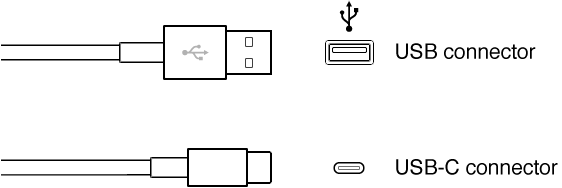
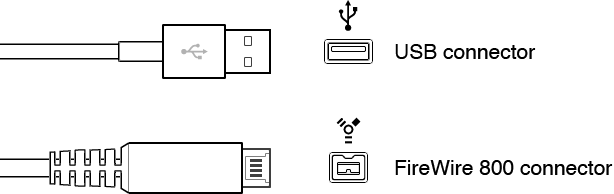
Connect an audio interface to a USB or FireWire port, then connect a microphone to the audio interface for recording.
Connect an audio mixer or console to an audio interface connected to your computer.
Select the audio track.
Click the Smart Controls button  to open the Smart Controls pane, then click the Inspector button
  .
.
In the Recording Settings section, choose one of the following from the Input pop-up menu:
If you’re using your computer’s built-in microphone, choose Built-in Microphone.
If you’re using a microphone connected to your computer’s audio input port, choose Built-in Input.
If Built-in Input doesn’t appear in the menu, choose GarageBand > Preferences, click Audio/MIDI, and choose Built-in Input from the Audio Input pop-up menu.
If you’re using a microphone connected to a USB port, choose the microphone.
If you’re using a microphone connected to an audio interface, choose the channel number for the microphone.
If the audio interface channels don’t appear in the menu, choose GarageBand > Preferences, click Audio/MIDI, then choose the audio interface from the Audio Input pop-up menu.
Make sure the format matches the microphone or instrument. Choose a mono input for monophonic instruments (with a single channel), and choose a stereo input for stereo instruments (with a pair of channels).
Drag the Recording Level slider to change the input volume level for the sound source.
If the Recording Level slider is dimmed, you can’t change the input volume in GarageBand. In this case, use the device’s own volume control.
In the Smart Control inspector, click the Monitoring button  .
.
The Monitoring button lights orange to indicate that monitoring is turned on.
To avoid unwanted feedback, you should usually turn off monitoring when you’re not playing or singing. Using headphones rather than speakers to listen to your projects can also help avoid feedback.