
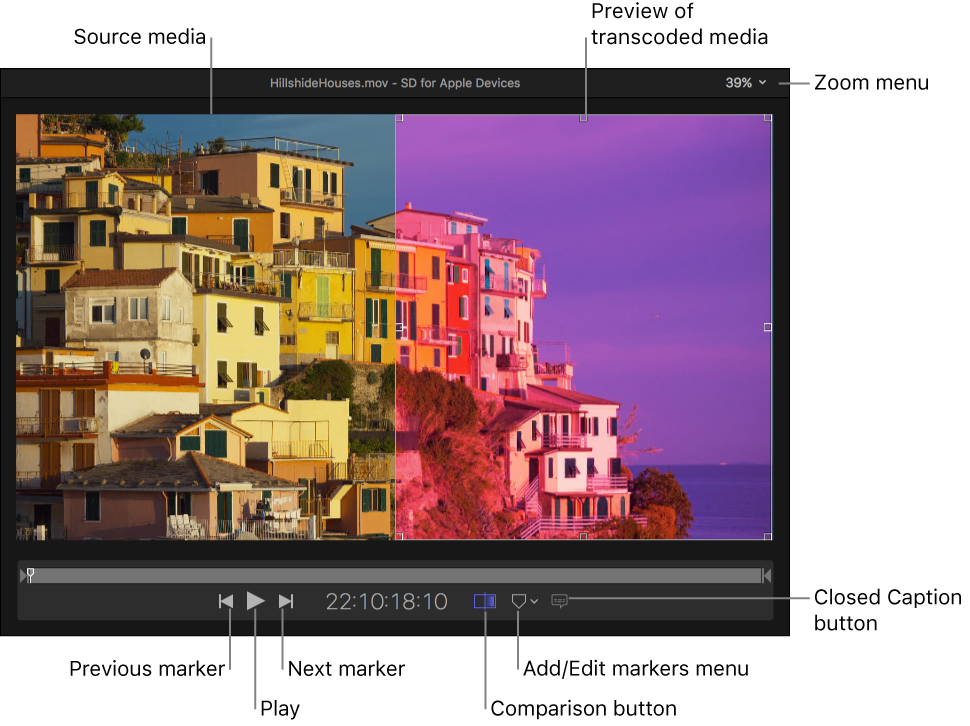
You can preview what your transcoded files will look like before you process a job. The preview area of the Compressor window has a number of tools to help you previsualize how your final output will appear.
Note: Property adjustments made in the video pane of the inspector to retiming, color space, and interlacing are not displayed in the preview area.
In a job in the batch area, select the output row that includes the setting you want to preview.
If the Comparison button  in the preview area isn’t already selected (highlighted), click it to turn on comparison previewing.
Click the Play button  .
.
The source file video plays on the left side of the preview area, and a preview of the transcoded file plays on the right side. The transcoded audio plays through your computer speakers (or through connected speakers).
Do one of the following:
Pinch open or closed on a trackpad.
Double-tap with two fingers on a trackpad to toggle the zoom level between 100% and Zoom to Fit.
Click the Zoom pop-up menu (in the upper-right corner of the preview area), then choose a zoom level.
Press Shift-Z to resize the preview area to fit the current available window space.
Tip: To increase the available preview area space, resize the Compressor window, or drag the divider bar between the preview area and the batch area down.
When the preview area is zoomed to a level greater than 100%, you can’t view the entire image at once. However, you can scroll the preview area to see more of the image.
Do one of the following:
Swipe the trackpad using two fingers.
Drag the inner box of the navigation control (in the upper-right corner of the zoomed-in preview area).
If you’ve added closed-caption data to your job, you can view that text in the preview area.
In the batch area, select the output row for the job containing closed-caption data.
In the preview area, click the "Display closed captions” button  , then choose On.
To stop displaying closed captions, click the “Display closed captions” button again, then choose Off.
For more information about adding closed-caption data to a job, see Add metadata.
iTunes Store packages are special types of batches that can include closed-caption data, subtitles (in multiple languages), and alternative audio tracks. In the preview area, you can view any of that text and choose which audio track to hear.
In the batch area, select the Feature video.
In the preview area, click the "Show closed captions, subtitles and audio language” button , then choose the audio track you want to hear and the subtitle text you want to display.
Note: To learn more, see iTunes Store packages.
In the preview area, you can also add markers, set a poster frame, or identify a portion of the source file to transcode.