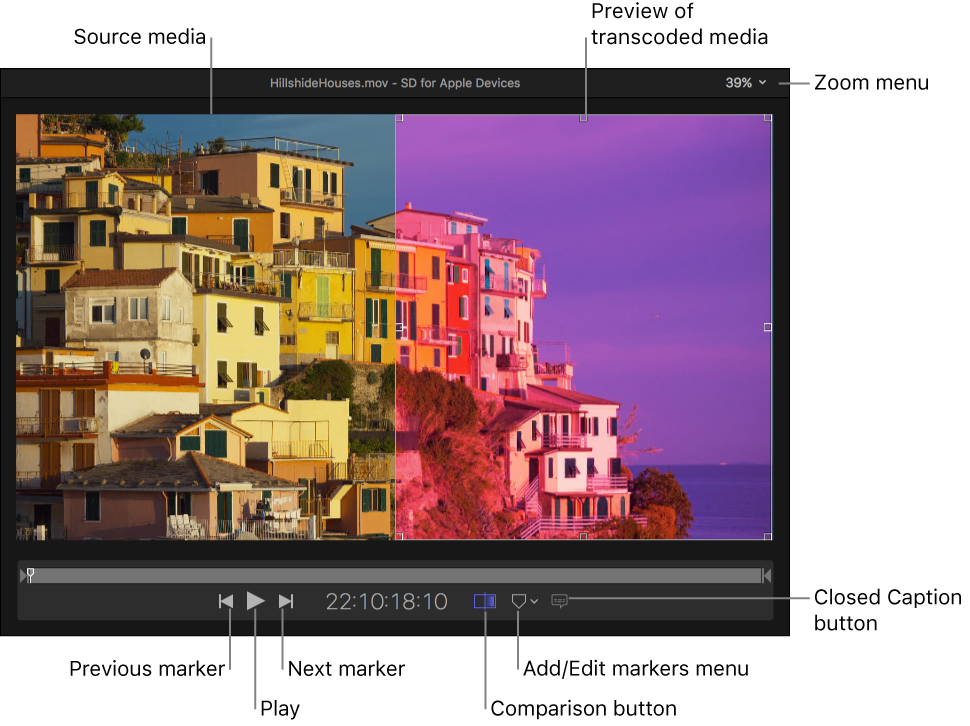
The area in the Compressor window where you can play your source file and preview the transcoded file. When you click the Comparison button, the screen is divided by a vertical white line, with the source file shown on the left and the preview of the transcoded files shown on the right.
To preview the transcoded source file: Make sure the Comparison button  is selected (highlighted), and then click the Play button
  .
.
To modify the start and end point of the output file: Drag the In point  or Out point
  to a different location in the timeline.
To jump between markers or In and Out points: Click the Previous button  or Next button
  .
.
To zoom in or out on the preview area: click the Zoom pop-up menu in the upper right, and select a zoom level.
To display closed captions (or subtitles in an iTunes Store Package) in the preview area: click the Display Closed Captions/Languages button  and choose On.
To choose an alternative audio track in an iTunes Store Package: click the Display Closed Captions/Languages button and choose the audio language you want to play.
You can also use the Marker pop-up menu  to add chapter, compression, and edit markers or a poster frame to your output file.