
You can share a result bundle with a team member and they can open it in a standalone Report navigator without needing the associated project.
First run a UI test or unit test, then view the test reports in the Test navigator ( ). Control-click a test and choose Jump to Report from the pop-up menu to open the report.
Then show the result bundle in Finder and share the file with a team member. The team member can open a result bundle without the project. You can also view the objects in a result bundle using command-line tools.
In the Report navigator (click the  button), Control-Click a test or a test action (for example, Build or Log).
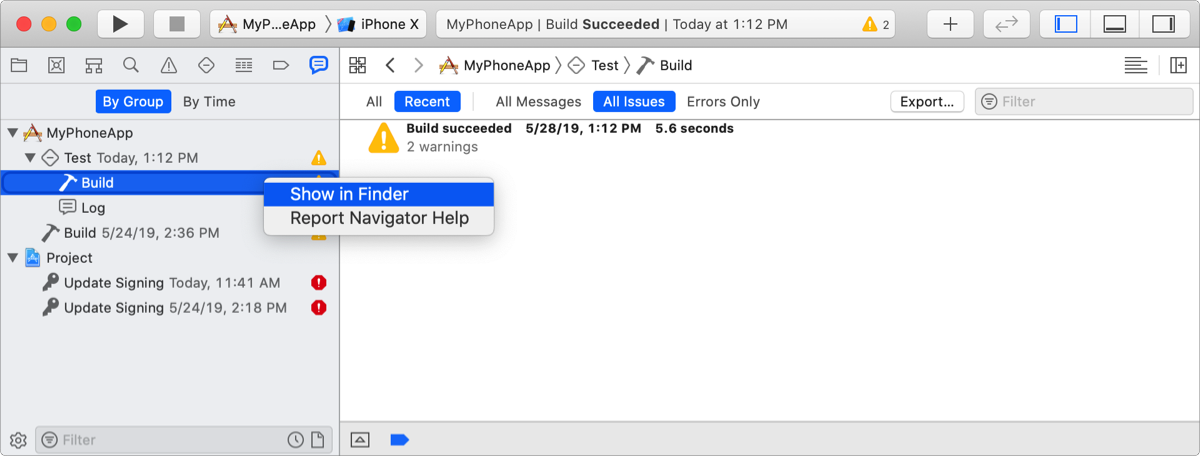
Choose Show in Finder from the pop-up menu.
The result bundle (a file with a .xcresult file extension) appears highlighted in Finder.
Alternatively, you can save a result bundle to a specified location by passing the -resultBundlePath flag to the xcodebuild command. For example, save the result bundle while building a test:
xcodebuild test -scheme [App Name] -project [Project file path] -resultBundlePath [Result bundle path]For more options, enter man xcodebuild in Terminal.
You can save a result bundle to a specified location by passing the -resultBundlePath flag to the xcodebuild command.
In Terminal, save the result bundle while performing a build action:
xcodebuild [action] -scheme [App Name] -project [Project file path] -resultBundlePath [Result bundle path]Pass analyze, build, build-for-testing, test, or test-without-building as the action.
For more options, enter man xcodebuild in Terminal.
Double-click the result bundle (a file with a .xcresult file extension).
The result bundle appears in a standalone Report navigator.
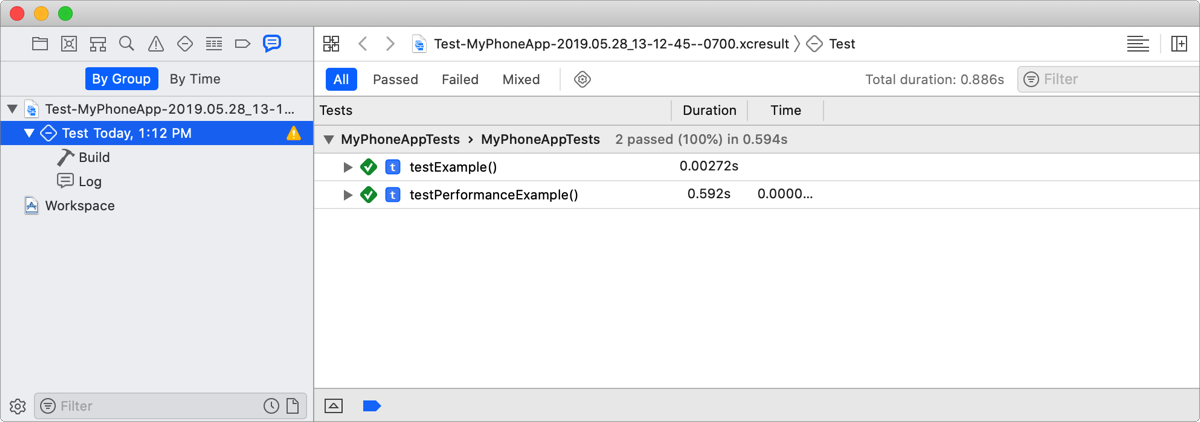
If you open a result bundle without the project open but you have the project folder on your Mac, you can open it in the workspace.
In the standalone Report navigator, Control-Click the result bundle or a test in the result bundle, then choose Open in Workspace from the pop-up menu (or choose Editor > Open in Workspace).
The project opens with the result bundle in the Report navigator.
You can get the contents of a result bundle by using the xcrun xcresulttool command in Terminal.
To get a human readable description of the objects, enter:
xcresulttool formatDescriptionTo get a JSON or Markdown representation, pass --format json or --format markdown.
To export the root bundle object called ActionInvocationRecord, enter:
xcrun xcresulttool get --path [Path to .xcresult file] --format jsonTo get an object by reference, enter:
xcrun xcresulttool get --path [Path to .xcresult file] --id [Object ID]If the reference is an attachment payload, pass --format raw to get the raw bytes. If the reference is to another structured object, pass --format json to get a JSON representation.
For more options, enter xcrun xcresulttool --help or man xcresulttool in Terminal.