
Use the Test navigator to run UI tests and unit tests that check the performance and behavior of your code.
Important: If you convert your scheme to use test plans, first choose the test plan from the Test Plan pop-up menu, then follow these steps.
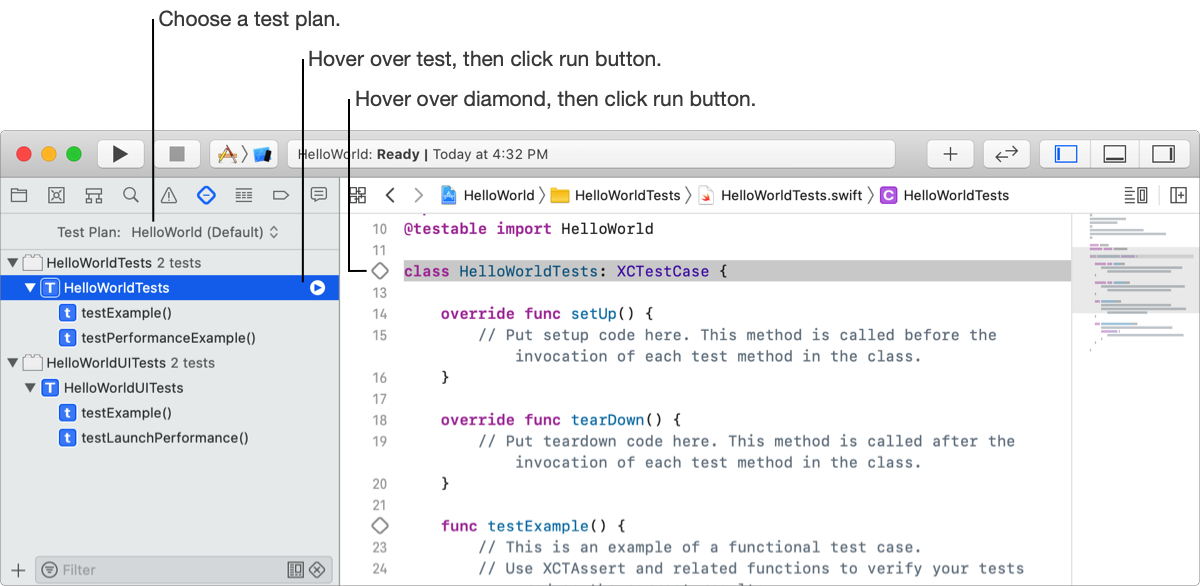
Run all tests in a scheme or test plan: Choose Product > Test. Alternatively, click and hold the Run button in the toolbar, then choose Test.
Run all tests for a test target or test class: In the Test navigator, hover the pointer over any test target or test class, then click the run button that appears.
Run an individual test: Hover the pointer over any test or status icon, then click the run button that appears.
View the source code for a test: Select a test in the Test navigator to open its code in the source editor.
Alternatively, you can run tests from the source editor. Hover the pointer over a diamond icon that appears in the gutter next to a test class or a test method, then click the run button that appears.