
You can’t sign an app without a valid signing certificate and Apple certificate authority in your keychain. A development or distribution certificate with its public key is stored in your developer account, but the certificate with its private key (called a signing certificate) should be in your keychain. Xcode will detect problems with your signing certificate but you can also use Keychain Access to view a signing certificate and if necessary, remove a signing certificate.
Launch Keychain Access (located in /Applications/Utilities).
When you create a development or distribution certificate using Xcode, the certificate is automatically installed in your login keychain.
In the left pane, select login in the Keychains section and select Certificates (or My Certificates) in the Category section.
Only the signing certificates you created on this computer appear in the keychain.
Note: Your developer account will show all the certificates you created on all your Mac computers. If you enroll as an organization, the developer account shows all certificates created by members of your team.
Locate the certificate you want to view in the list.
Use the certificate name to identify the certificate type and team that the certificate belongs to. For example, an Apple Development certificate begins with “Apple Development” and an Apple Distribution certificate begins with “Apple Distribution.”
Verify that there’s a disclosure triangle to the left of the certificate.
If you click the disclosure triangle next to the certificate name, the private key appears. If the disclosure triangle doesn’t appear, you’re missing the private key.
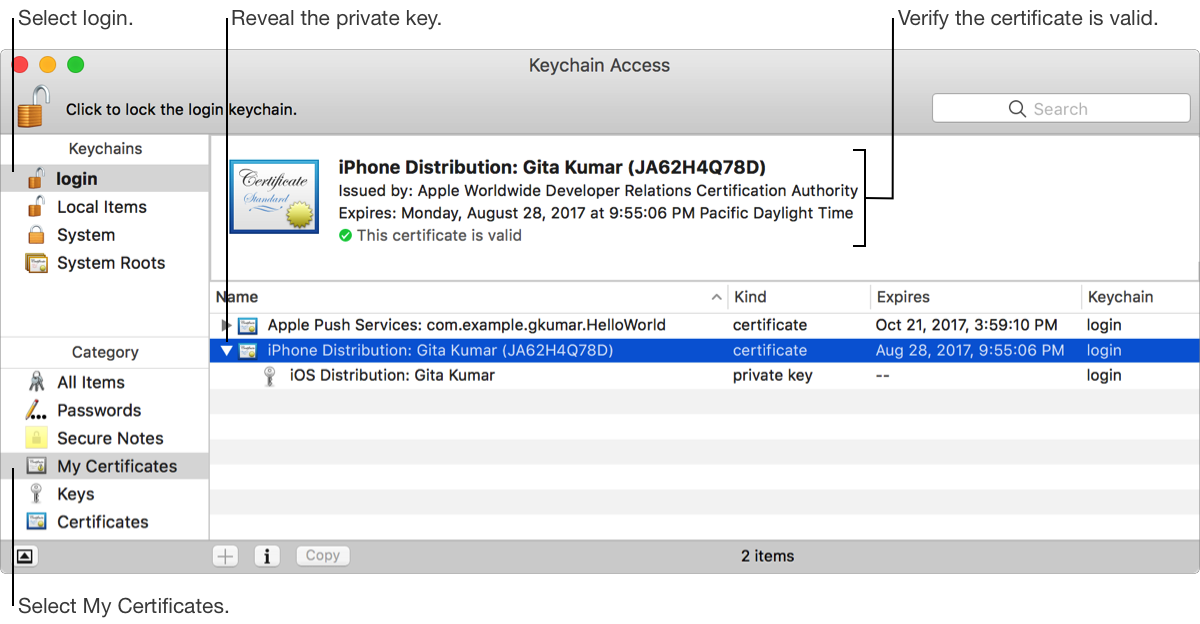
Verify that the certificate is valid.
When you select a certificate, a green circle containing a checkmark appears in Keychain Access above the list of certificates. The text next to the checkmark should read “This certificate is valid.”
Launch Keychain Access (located in /Applications/Utilities).
In the Category section, select Keys.
Locate the private key for the certificate you want to remove and click the disclosure triangle next to the key to reveal the certificate.
Use the enclosed certificate name to verify the certificate type and team that the certificate belongs to.
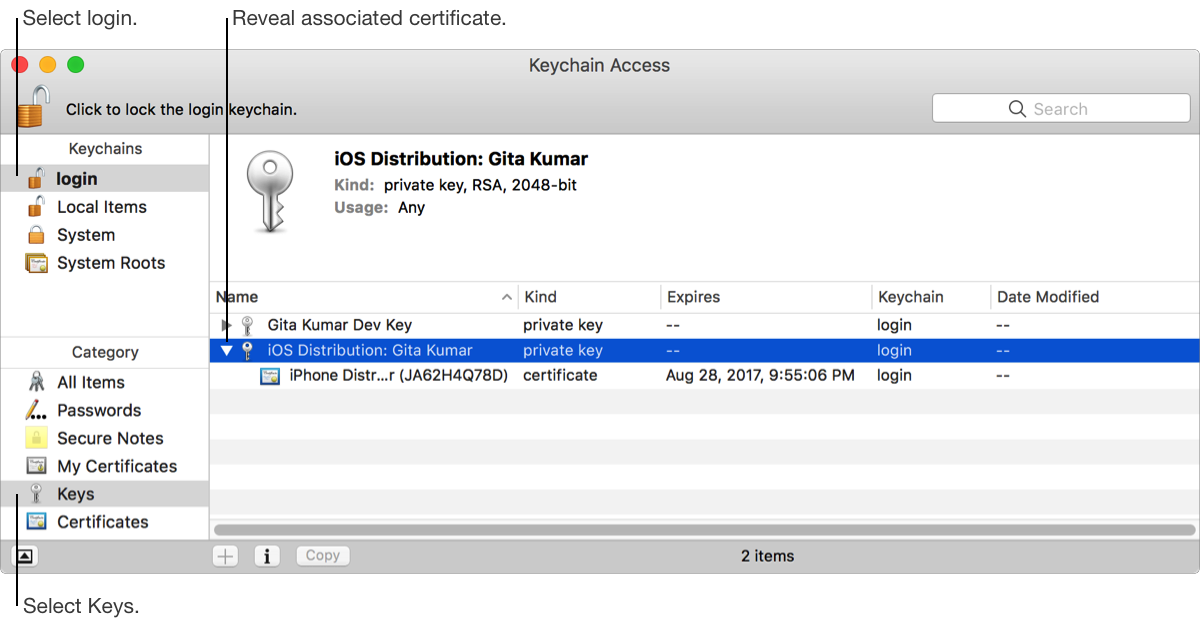
Select the private key associated with the certificate.
Press Delete (on the keyboard), and when a dialog appears, click Delete.
In the Category section, select Certificates.
Select the certificate that you want to remove.
The certificate won’t have its private key.
Press Delete (on the keyboard), and when a dialog appears, click Delete.