
You can test localizations by choosing an application language and region in the scheme. Even if you haven’t localized your app yet, you can still identify non-localized text in the user interface, test programmatically localized strings, and choose pseudolanguages to proof other behaviors.
In the main window, choose Edit Scheme from the scheme menu in the toolbar.
In the left column, select the Run scheme action.
To highlight strings in the user interface that are not localized, select “Show non-localized strings” under Localization Debugging.
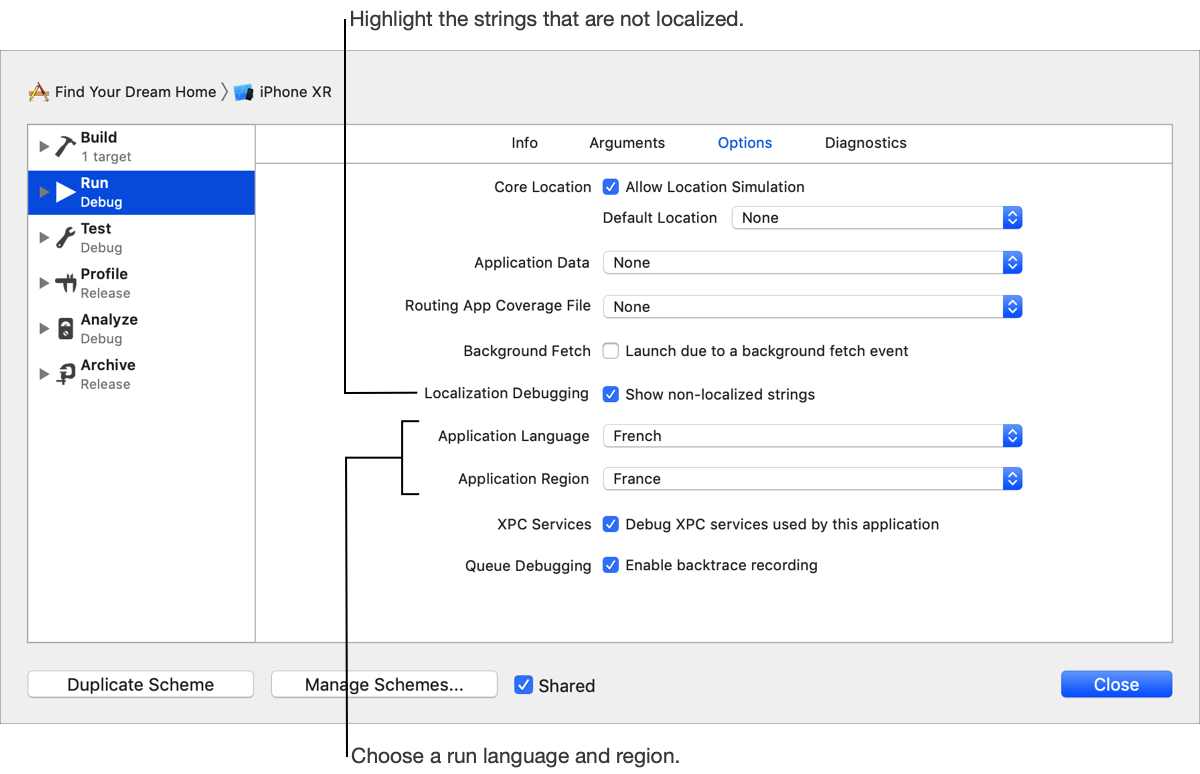
Choose a language from the Application Language pop-up menu:
[Language]: Runs the app in the selected language. If you haven’t localized your app in the selected language, this option still tests programmatically generated user-facing text—such as strings that use number and date formatters.
Double-Length Pseudolanguage: Doubles the length of localizable strings. Tests whether the size and position of views adjust correctly.
Right-to-Left Pseudolanguage: Runs the app as if the language has right-to-left writing direction. Tests whether the user interface and its views flip accordingly.
Accented Pseudolanguage: Adds accents to the localizable strings.
Bounded String Pseudolanguage: Changes localizable strings to bounded strings.
Right-to-Left Pseudolanguage With Right-to-Left Strings: Runs the app as if the language has right-to-left writing direction, using right-to-left strings.
Choose a region from the Application Region pop-up menu:
System Region: Runs the app using the operating system region.
[Base Region]: Runs the app using the base or development region.
[Region]: Runs the app using the region.
Click Close.
In the toolbar, click the Run button.
Your app runs using the scheme settings.