
On macOS 10.14 and later, users can select light or dark mode in System Preferences. If you use system defaults, your assets automatically switch to a dark appearance when the system is in dark mode. Alternatively, provide specific appearances for assets in dark mode. Also provide light appearances if they differ from the Any appearances that are the default for light mode and used on earlier macOS versions.
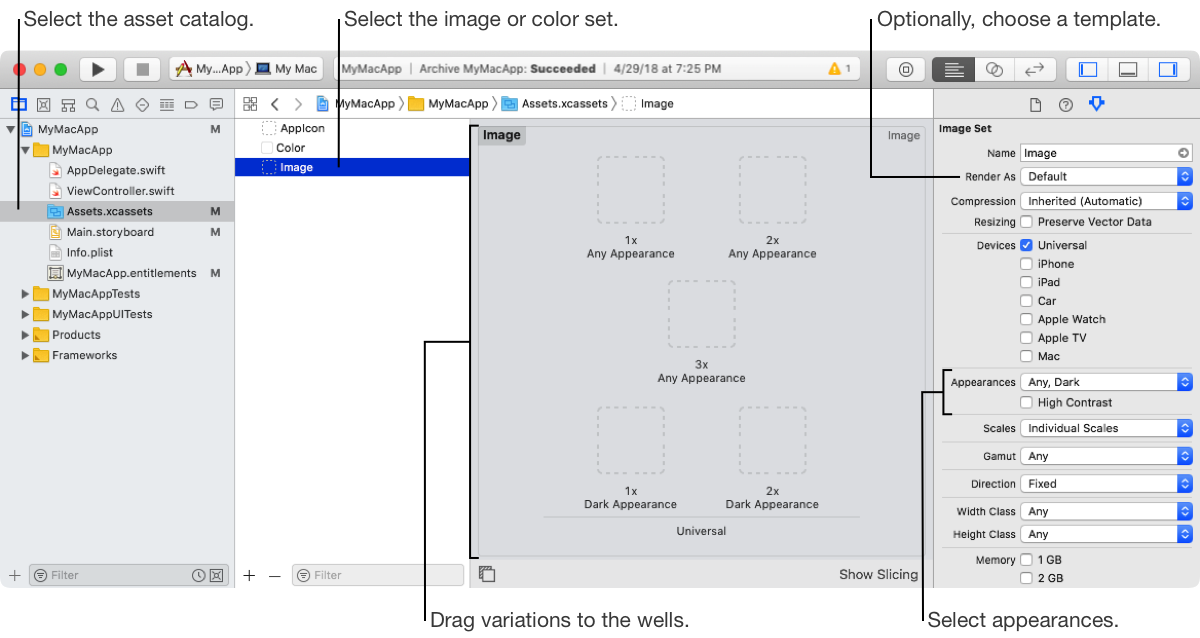
If you use an image template, the image automatically adjusts for dark mode.
In the Project navigator, select the asset catalog, then select the image set.
In the Attributes inspector, select Template Image from the Render As pop-up menu under Image Set.
In the Project navigator, select the asset catalog, then select the image set.
In the Attributes inspector, choose appearances from the Appearances pop-up menu.
The appearances you can support are:
None: Provide appearances for any macOS version.
Any, Dark: Provide additional appearances for dark mode. (Uses the Any appearances for light mode.)
Any, Light, Dark: Provide additional appearances for both light and dark mode.
To add high contrast appearances, select High Contrast.
A high contrast image is used to increase the contrast between user interface elements. (On the Accessibility pane in System Preferences, the user can change the contrast in the Display settings.)
Drag variations of the image to the wells that appear in the detail area.
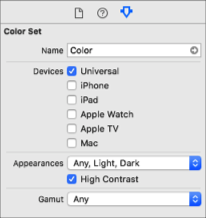
If you create a color set to use in Interface Builder, set the dark and optionally, the light appearance for the color set.
In the Project navigator, select the asset catalog, then select the custom color set.
In the Attributes inspector, choose appearances from the Appearances pop-up menu.
The appearances you can support are:
None: Provide appearances for any macOS version.
Any, Dark: Provide additional appearances for dark mode. (Uses the Any appearances for light mode.)
Any, Light, Dark: Provide additional appearances for both light and dark mode.
To add high contrast appearances, select High Contrast.
A high contrast image is used to increase the contrast between user interface elements. (The user can turn on High Contrast in the System Preferences Accessibility pane.)
From the Gamut pop-up menu, choose the color space used by the device.
Any: An unspecified gamut.
sRGB and Display P3: Specifies the sRGB and P3 display gamuts.
Set variations of the color in the wells that appear in the detail area.